
Dirga Raj Lama
Web Developer
How to Fix Duplicate Content Issues in WordPress
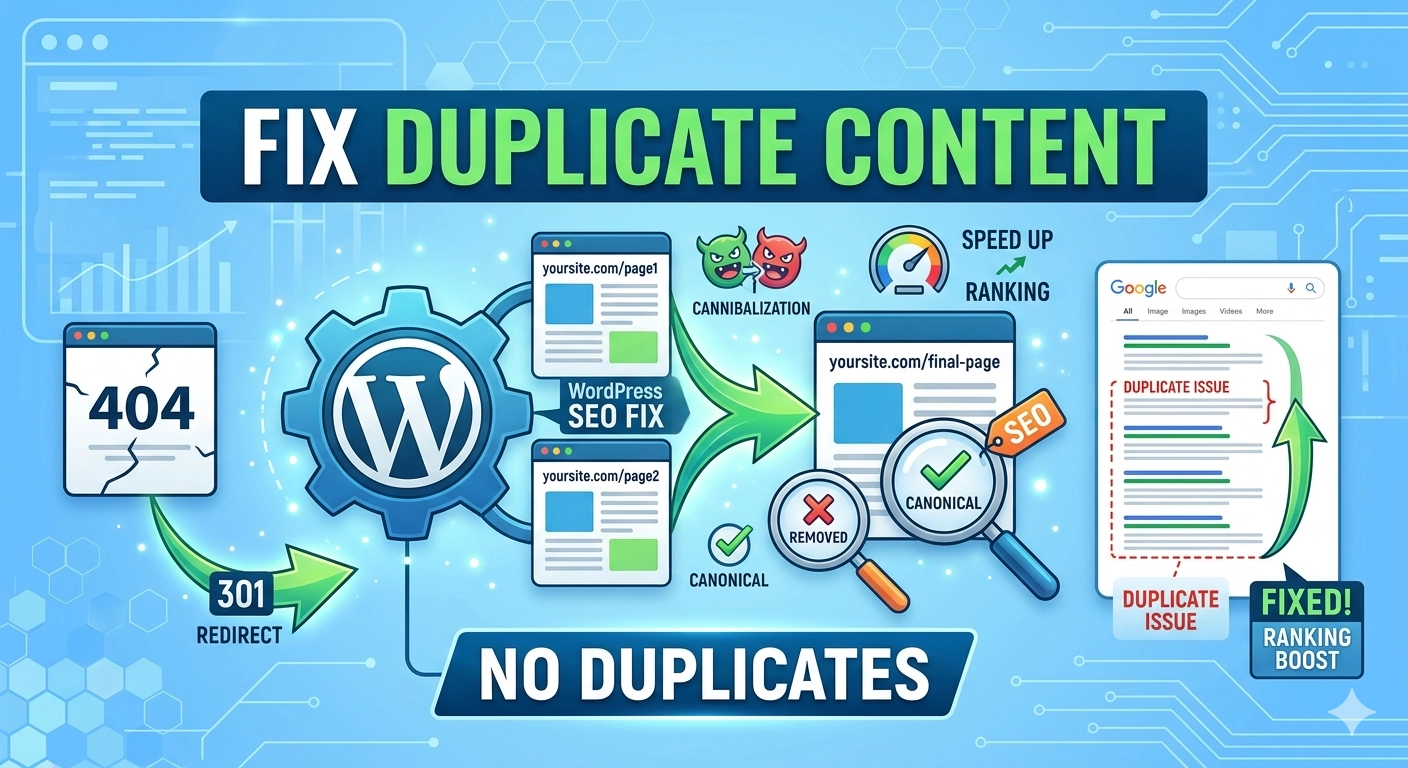
In the world of search engine optimization, uniqueness is currency. When multiple versions of the same content exist on different URLs, search engines struggle to decide which version to rank, often leading to a “cannibalization” effect that hurts your overall visibility. If you want to maintain a healthy site structure and high search rankings, you must learn how to fix duplicate content issues in WordPress. Left unaddressed, these issues can dilute your link equity and confuse Google’s crawlers, resulting in lower traffic and suppressed performance across your entire domain.
Understanding Duplicate Content in the WordPress Ecosystem
WordPress is a powerful CMS, but its dynamic nature—generating archives, categories, and tags—can inadvertently create multiple paths to the same post. Duplicate content isn’t always a “copy-paste” job from another website; more often than not, it is a technical byproduct of how your site is configured. Common culprits include:
- HTTP vs. HTTPS: Having both versions accessible without a redirect.
- WWW vs. Non-WWW: Search engines see
[www.yoursite.com](https://www.yoursite.com)andyoursite.comas two distinct entities. - URL Parameters: Tracking codes or sorting filters that create unique URLs for identical content.
- Tag and Category Archives: When short snippets of a post appear on multiple archive pages, it can trigger duplicate content flags.
1. Set Your Preferred Domain (WWW vs. Non-WWW)
One of the most fundamental steps to fix duplicate content issues in WordPress is ensuring you have a single canonical version of your URL. In your WordPress dashboard under Settings > General, ensure that both the WordPress Address (URL) and Site Address (URL) match exactly.
Once defined, use your .htaccess file or a server-side redirect to force all traffic to your preferred version. This ensures that backlinks pointing to both versions of the site consolidate their power into a single URL.
2. Implement Canonical Tags
A canonical tag (rel="canonical") is a snippet of HTML code that tells search engines, “Even though you found this content here, the ‘master’ version lives at this specific URL.”
Most modern SEO plugins, like Yoast or Rank Math, handle this automatically. For example, if a user accesses a blog post through a tracking link like [yoursite.com/blog-post/?utm_source=newsletter](https://yoursite.com/blog-post/?utm_source=newsletter), the canonical tag will point back to the clean URL: [yoursite.com/blog-post/](https://yoursite.com/blog-post/). This is a primary defense mechanism for web designers and developers who want to ensure their technical SEO remains airtight.
3. Manage Category and Tag Archives
While categories and tags are great for user navigation, they can create “thin” duplicate content. If you have a post assigned to three different tags, that post’s intro might appear on three different archive pages.
To address this:
- Use “Noindex”: Use your SEO plugin to set archive pages (especially Date or Author archives) to
noindex. This keeps them functional for users but tells Google not to include them in search results. - Excerpts Only: Configure your theme to show excerpts rather than full posts on archive pages. This minimizes the amount of overlapping text between the archive and the actual post.
4. Handle Trailing Slashes and Case Sensitivity
Google views [yoursite.com/page](https://yoursite.com/page) and [yoursite.com/page/](https://yoursite.com/page/) as different URLs. Similarly, [yoursite.com/Page](https://yoursite.com/Page) (capitalized) is technically distinct from the lowercase version.
To fix duplicate content issues in WordPress related to URL structure, you should:
- Navigate to Settings > Permalinks and ensure your structure is consistent.
- Use a plugin like Redirection to create 301 redirects for any inconsistent legacy URLs.
- Consult professional WordPress technical management resources if you are dealing with complex database-level URL issues.
5. Use 301 Redirects for Deleted Content
When you delete a page or change a URL, it doesn’t just disappear from Google’s index immediately. It leaves behind a “404 Not Found” error, or worse, Google might try to associate the old URL with a similar existing page. Always use a 301 redirect to point deleted content to the most relevant active page on your site. This prevents “soft 404” errors and keeps your site’s link graph clean.
Conclusion
Knowing how to fix duplicate content issues in WordPress is essential for any site owner who takes search visibility seriously. By standardizing your URLs, correctly using canonical tags, and managing how archives are indexed, you ensure that search engines spend their “crawl budget” on your most important content.
Whether you are building a logo design service page or a massive travel directory, technical hygiene is the foundation of digital success. Stay proactive, audit your site regularly with tools like Google Search Console, and keep your content unique to stay ahead of the competition.