
Dirga Raj Lama
Web Developer
WordPress Performance Optimization: 7 Technical Tips to Reduce Load Time
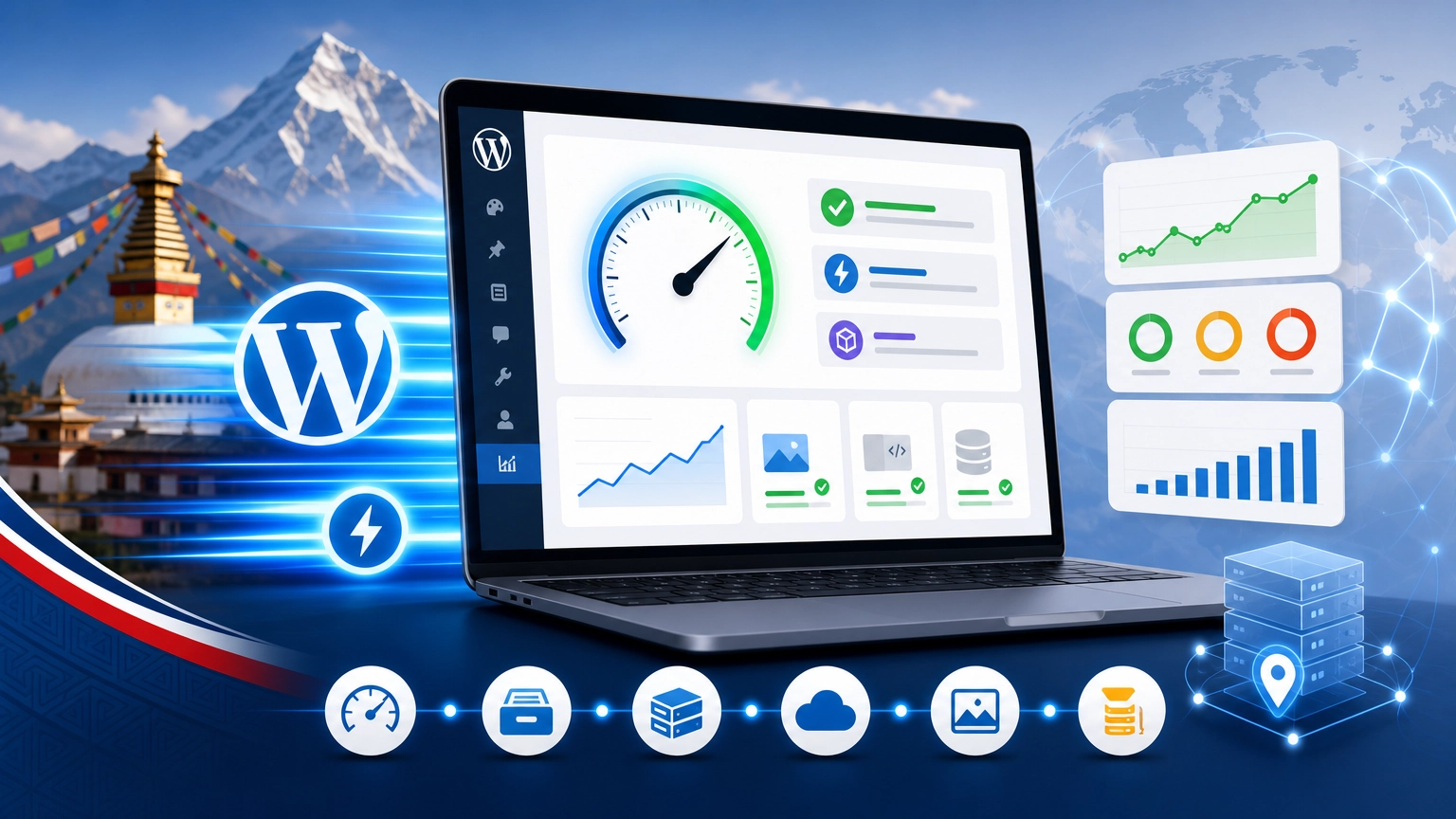
Slow loading time causes high bounce rates and poor search engine rankings. WordPress performance optimization lowers TTFB, enhances Core Web Vitals scores, and lessens the use of server resources. The following is a detailed explanation of how to apply seven methods of improving WordPress site performance using certain tools and settings.
Importance of WordPress Performance Optimization
The three Core Web Vitals, LCP, FID, and CLS, are used by Google as ranking factors. Poor performance affects organic traffic. WordPress performance optimization covers both server-side and front-end issues.
Refer to Google’s Core Web Vitals documentation for official metrics and thresholds.
1. Get High-Performance Hosting Infrastructure
With shared hosting, you’ll likely see TTFB > 600ms. To have efficient optimization for WordPress site performance, use managed WordPress hosting (Kinsta, WP Engine, or Cloudways) or a virtual private server with Nginx, PHP 8.2+, and Redis. Specifications include:
- PHP Memory Limit: 256MB+
- MySQL 8.0 or MariaDB 10.6+
- Object caching built-in (Redis)
Compare providers in the WordPress hosting benchmark report.
2. Implementing Page Caching
Page caching caches pre-built HTML pages, skipping the need to generate those pages through PHP and MySQL operations. You can use WP Rocket (paid plugin) or LiteSpeed Cache (free for OpenLiteSpeed). Configure the following:
- Page caching (cache time: 10 hours to 24 hours)
- Browser caching with expiration headers (static assets expire after one year)
- Redis object caching
Just using caching cuts page load times in half or even three-quarters and is fundamental to WordPress performance.
For cache configuration details, see LiteSpeed Cache documentation.
3. Compress Images and Enable Lazy Loading
Unoptimized images represent 70–80% of page weight. Apply:
- Compression: ShortPixel or Imagify (lossy 85% quality setting)
- Format conversion: WebP or AVIF (20–30% smaller than JPEG)
- Lazy loading: native loading=”lazy” attribute (automatic in WordPress 5.9+)
Do not serve images larger than display dimensions. Use srcset for responsive images. Lazy loading defers off-screen images, reducing initial load time by 30–50%.
4. Minify and Combine CSS/JS
Minification will get rid of white spaces, comments, and unnecessary code. A combination will decrease the number of HTTP requests. Utilize Autoptimize or WP Rocket plugins:
- Minify CSS, JS, HTML
- Merge CSS and JS into one file (make sure your theme doesn’t crash)
- Add defer to render-blocking JS files
Exclude jQuery and critical CSS for your theme from deferral to ensure everything works well. This optimization technique affects mobile devices the most.
5. Activate a Content Delivery Network (CDN)
A CDN caches static assets (images, CSS, JS) on edge servers globally, reducing latency. Recommended providers:
- Cloudflare (free plan includes shared CDN, DDoS protection)
- Bunny.net (pay‑as‑you‑go, starting at $0.01/GB)
- StackPath (enterprise)
After CDN activation, rewrite asset URLs to the CDN subdomain. Cloudflare also provides APO (Automatic Platform Optimization) for WordPress – costs $5/month but caches dynamic pages.
For setup instructions, read Cloudflare CDN configuration for WordPress.
6. Clean and Optimize the Database
WordPress databases accumulate redundant data over time:
- Post revisions (keep maximum 2–3 per post)
- Trashed comments and spam
- Expired transients and cache entries
- Orphaned post meta and term relationships
Use WP‑Optimize or Advanced Database Cleaner. Run the following operations monthly:
- Delete revisions older than 30 days
- Remove unused tags and orphaned meta
- Optimize tables (OPTIMIZE TABLE command)
Additionally, disable post revisions in wp-config.php unless required:
define(‘WP_POST_REVISIONS’, 3);
7. Select a Lightweight Theme and Reduce Plugins
Theme and plugin bloat increases CSS/JS payload and database queries. For optimal WordPress performance optimization, use:
- GeneratePress (lightweight, modular)
- Astra (with all modules disabled)
- Kadence (minimal default assets)
Avoid page builders (Elementor, WPBakery, Divi) when possible – they add 200–500 KB of additional CSS/JS. Conduct a plugin audit:
- Deactivate unused plugins
- Delete inactive plugins (they still load potential vulnerabilities)
- Replace multiple plugins with a single solution (e.g., Rank Math SEO replaces three separate SEO plugins)
Measure impact using the Query Monitor plugin to see database queries per page.
Performance Monitoring Protocol
After applying optimizations, validate with these tools:
| Tool | Metric Focus |
| Google PageSpeed Insights | Core Web Vitals, mobile score |
| GTmetrix | Waterfall chart, fully loaded time |
| WebPageTest | First byte time, Start Render |
Target metrics:
- TTFB < 200ms
- LCP < 2.5s (desktop), < 3.0s (mobile)
- FID < 100ms
- CLS < 0.1
Implementation Checklist for WordPress Performance Optimization
Execute the following items sequentially:
- Upgrade hosting to managed WordPress or VPS with Redis
- Install and configure caching plugin (WP Rocket or LiteSpeed Cache)
- Compress all images using ShortPixel; convert to WebP
- Enable lazy loading (native or via plugin)
- Minify CSS/JS with Autoptimize; defer non‑critical scripts
- Activate Cloudflare CDN with APO (optional)
- Run database cleanup monthly via WP‑Optimize
- Switch to GeneratePress theme; remove unused plugins
- Measure speed with PageSpeed Insights; iterate
Conclusion
WordPress website optimization, done systematically, will ensure that loading time for the page is reduced by 50 to 80%. Begin with the two most effective elements: hosting and caching services. Next comes the use of image compression and CDN, followed by database optimization. Test the results at each step using the software mentioned above.
For advanced tuning, consult WordPress performance audit service.