
Dirga Raj Lama
Web Developer
How to Fix WordPress Not Sending Emails (9 Proven Methods)
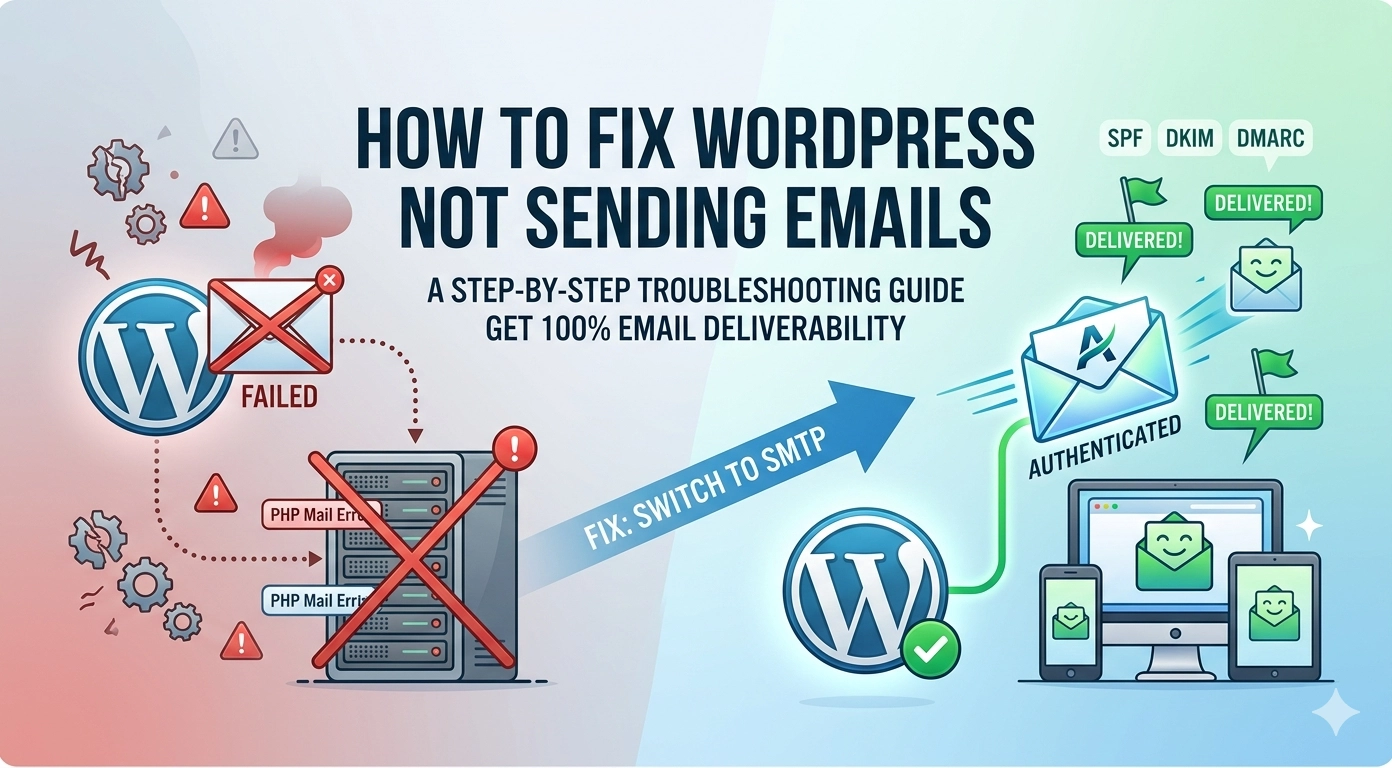
How to Fix WordPress Not Sending Emails: 9 Proven Methods
Few things are more frustrating than discovering your contact form submissions never arrived, or your customers are not receiving their order confirmations. If your How to Fix WordPress Not Sending Emails problem has been hurting your business, you are not alone. This is one of the most common issues site owners face. The good news? Most causes are simple to diagnose and fix. In this guide, we will walk you through nine proven methods to resolve this error—whether you use contact forms, e-commerce, or membership sites. Let’s get your emails flowing again.
Why Is WordPress Not Sending Emails?
Before jumping into fixes, it is vital to understand the root cause. WordPress does not have a built-in email sending feature. Instead, it relies on the PHP mail() function provided by your hosting server. When the WordPress not sending emails problem appears, the culprit is usually one of these:
- Hosting server blocks PHP mail (common on shared hosting)
- Incorrect SMTP settings or authentication errors
- Emails marked as spam by providers (Gmail, Outlook)
- Plugin or theme conflicts
- Missing or misconfigured
wp-config.phpsettings
Method 1: Check If WordPress Actually Sends Any Email
Do not assume the problem is universal. First, test if the issue affects all emails. Go to your WordPress login screen and click “Lost your password?” Enter your admin email address. Check that inbox (including the spam folder). If the reset email arrives, your WordPress core can send emails—meaning the issue might be specific to your contact form plugin.
Method 2: Install an SMTP Plugin (The Most Reliable Fix)
The single best solution for how to fix WordPress not sending emails is to bypass PHP mail entirely and use SMTP (Simple Mail Transfer Protocol). SMTP uses proper authentication, making your emails look legitimate to receiving servers.
- Recommendation: Install a free plugin like WP Mail SMTP or FluentSMTP.
- Setup: Choose a mailer (like SendLayer, Brevo, or Gmail) and follow the authentication steps to connect your site to a real mail server.
Method 3: Use a Transactional Email Service
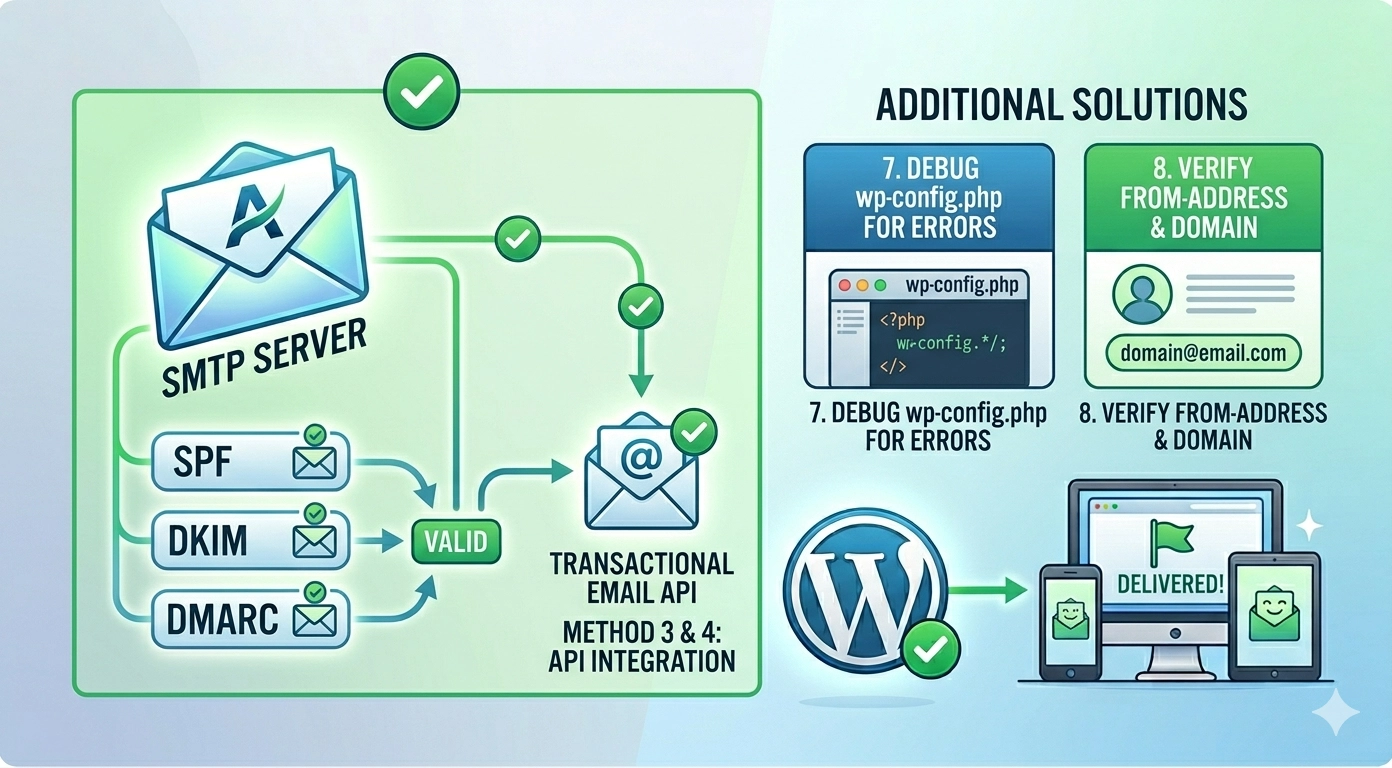
If you run an e-commerce site, free SMTP may hit sending limits. Services like SendGrid, Mailgun, or Amazon SES are designed for high-volume “transactional” emails. They provide API keys that you can plug into your SMTP plugin to ensure 100% deliverability.
Method 4: Check Your Hosting Provider’s Limits
Many budget hosts block PHP mail to prevent spam abuse. If your email stopped suddenly, contact your host’s support. Ask if they block the mail() function or have hourly limits. If they do, they will confirm that using an external SMTP service is required.
Method 5: Configure SPF, DKIM, and DMARC Records
Your panic over how to fix WordPress not sending emails might actually be a spam filtering issue. You need to prove to the world that you are authorized to send email from your domain.
-
SPF: A DNS record stating which servers can send mail for you.
-
DKIM: A digital signature for your emails.
-
DMARC: Instructions for servers on what to do if SPF/DKIM fails.
Method 6: Test for Plugin or Theme Conflicts
A newly installed plugin can break your site’s mailing functionality. To test this:
- Deactivate all plugins except your SMTP plugin.
- Send a test email.
- If it works, reactivate plugins one by one until it breaks again.
- Temporarily switch to a default theme like Twenty Twenty-Four to see if your theme’s code is the culprit.
Method 7: Use wp-config.php for Debugging
If you are comfortable with files, add these lines to your wp-config.php:
define('WP_DEBUG', true);
define('WP_DEBUG_LOG', true);
Try sending an email again, then check /wp-content/debug.log. It will often list the specific error code, such as “Connection Timed Out,” pointing you directly to the fix.
Method 8: Verify Your “From” Email Address
WordPress defaults to wordpress@yourdomain.com. Many providers reject this because it looks automated. Ensure your “From” address in Settings > General is a real, working email (e.g., info@yourdomain.com) that exists on your mail server).
Method 9: Check Server Logs and Cron Jobs
WordPress sends some emails via “wp-cron,” which triggers on page loads. If your site has very low traffic, these emails might get delayed. Use a plugin like WP Crontrol to ensure the wp_mail event is scheduled and running correctly.
Summary Checklist for Deliverability
| Fix Method | Best For |
| SMTP Plugin | 90% of all WordPress email issues. |
| DNS Records (SPF/DKIM) | Keeping emails out of the Spam folder. |
| Transactional API | E-commerce and high-traffic sites. |
| Plugin Conflict Test | Solving issues that started after an update. |
Conclusion
Learning how to fix WordPress not sending emails is a vital skill for any site owner. A website that cannot communicate is a website that cannot grow. By moving from the unreliable PHP mail function to a secure SMTP setup and verifying your domain records, you ensure that every password reset, order confirmation, and contact lead reaches its destination. Start with Method 2, as it resolves the vast majority of cases instantly!