
Dirga Raj Lama
Web Developer
How to Fix REST API Not Working in WordPress
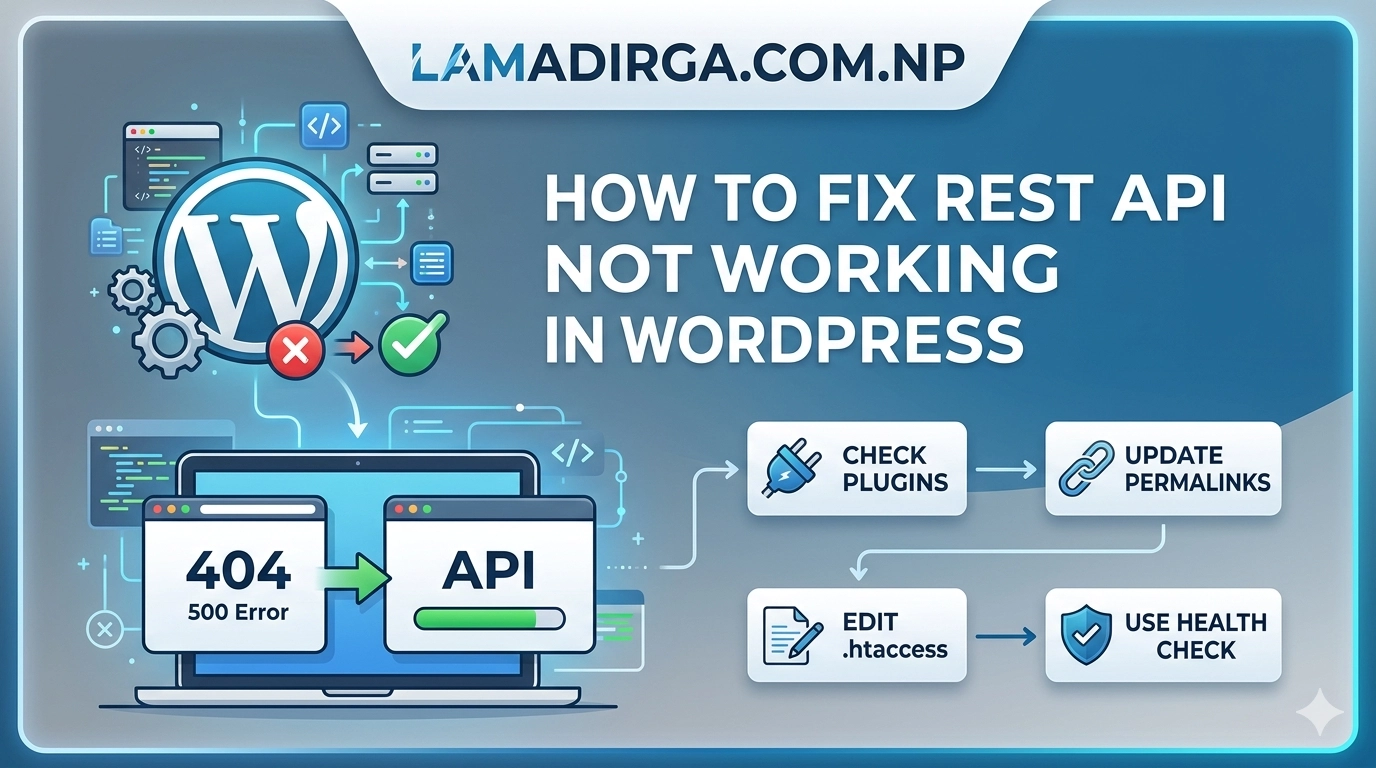
The WordPress REST API is the silent engine that powers modern features like the Gutenberg block editor, Site Health monitoring, and many third-party integrations. However, when it malfunctions, you might see errors like “The editor has encountered an unexpected error” or “Updating failed.” If you are trying to understand how to fix REST API not working in WordPress, you need to look at several layers—from simple permalink settings to complex server-side security rules. In this guide, we will break down the most common causes and provide a step-by-step resolution path to restore your site’s full functionality.
1. The Quickest Fix: Refresh Your Permalinks
One of the most common reasons the REST API fails is a corrupted .htaccess file or a “Plain” permalink structure. The REST API requires pretty permalinks to function correctly.
- The Fix: Navigate to Settings > Permalinks in your WordPress dashboard. Even if your settings look correct, simply clicking the “Save Changes” button at the bottom of the page will force WordPress to flush and regenerate your rewrite rules.
- Note: Ensure you are not using the “Plain” structure. Choose “Post name” or any other option to ensure the
/wp-json/endpoint is accessible.
2. Check for Plugin and Theme Conflicts
Plugins, especially security and optimization tools, often disable the REST API to “harden” the site. While well-intentioned, this frequently breaks core WordPress features.
- Identify the Culprit: Use the Health Check & Troubleshooting plugin to enter “Troubleshooting Mode.” This allows you to deactivate all plugins and switch to a default theme (like Twenty Twenty-Five) for your user session only, without affecting your visitors.
- Common Plugins to Check: * Security: Wordfence, Cerber Security, and “Disable REST API” plugins.
- Performance: Perfmatters or Clearfy, which often have a toggle to “Disable REST API for non-admins.”
3. Verify Server-Side Blocks and Cloudflare
Sometimes the block isn’t coming from WordPress itself, but from the server or a Web Application Firewall (WAF).
- Cloudflare: If you use Cloudflare, check your WAF Events. Rules meant to block “User Enumeration” or “Bot Scraping” can inadvertently block legitimate REST API calls.
- ModSecurity: Many hosting providers use ModSecurity on Apache servers. If a REST API request looks suspicious to the server, it will trigger a 403 Forbidden error. If you suspect this, you should consult a professional web development guide or contact your host to whitelist the
wp-jsonpath.
4. Increase PHP Memory and Limit
A slow or non-responsive API is often a resource issue. When the REST API tries to process large amounts of data (like during a site migration or a bulk update), it may hit the server’s memory ceiling.
- The Fix: Access your
wp-config.phpvia FTP and add the following line:define( 'WP_MEMORY_LIMIT', '512M' ); - Why it matters: Increasing your resources ensures that the server doesn’t “kill” the API process before it finishes sending its JSON response.
5. Authentication and Application Passwords
If you are trying to use the REST API for an external application and getting a 401 Unauthorized error, the issue is likely authentication.
- Application Passwords: Since WordPress 5.6, you can generate “Application Passwords” under Users > Profile. Do not use your regular login password for API requests; use these unique keys to ensure a secure and working connection.
- JSON Basic Auth: If you are a developer, make sure you have an authentication plugin installed if you aren’t using the native application password system.
6. Debugging with “Query Monitor”
If you are still stuck, install the Query Monitor plugin. It is the gold standard for WordPress debugging.
- Open a page where the REST API is failing (like the editor).
- Look at the “HTTP Web Services” tab in Query Monitor.
- It will show you the exact status code (404, 403, 500) and the component (plugin or theme) that made the request. This takes the guesswork out of how to fix REST API not working in WordPress.
Conclusion
A working REST API is no longer optional for a healthy WordPress site in 2026. By following these steps—starting with your permalinks and moving through plugin audits to server-level configurations—you can resolve even the most stubborn API issues. Keeping your API open and secure ensures that your site remains compatible with the latest web technologies and provide a seamless editing experience.
Looking for more technical solutions? Learn how to redirect and rewrite URLs using .htaccess to master your server’s configuration!