
Dirga Raj Lama
Web Developer
How to Debug Custom WordPress REST API Endpoints Returning 404
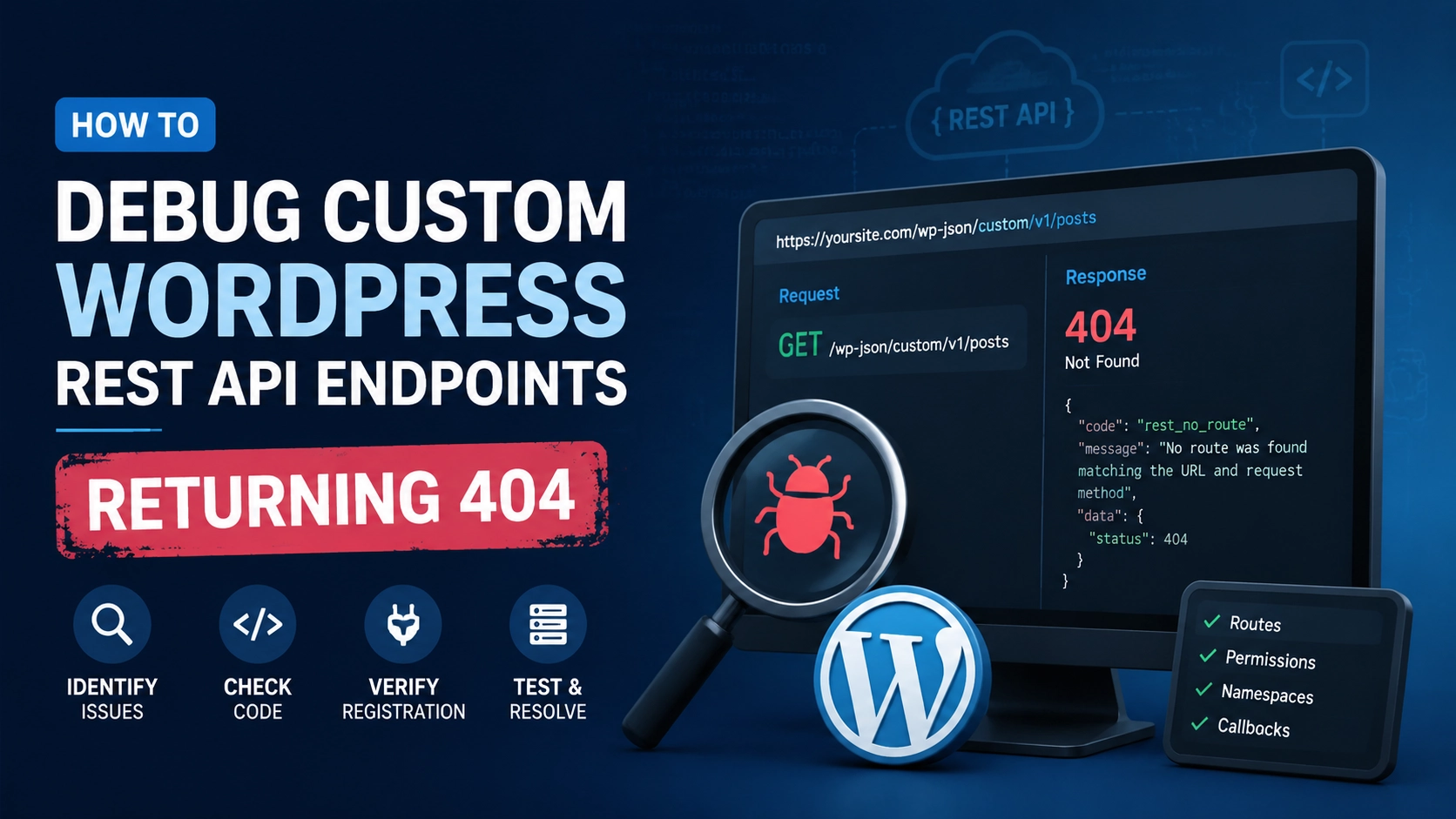
Building headless applications, decoupling frontends, or connecting mobile apps to your site heavily relies on creating custom API infrastructure. The WordPress REST API engine is incredibly powerful for this, allowing developers to quickly build out tailored decoupled architectures. However, few bugs stall development quite like registering a brand-new route, sending a test request via Postman, and getting a frustrating 404 Not Found response. Learning how to efficiently Debug Custom WordPress REST API Endpoints Returning 404 is a vital skill that will prevent hours of aimless troubleshooting and ensure your application’s data streams remain unbroken.
When an endpoint drops a 404 error, it simply means the WordPress routing engine cannot map the incoming request URL to a registered callback function. This usually boils down to namespace typos, flushed rewrite rules, or initialization hooks executing at the wrong phase of the application lifecycle.
1. The Missing Piece: Flush Your Rewrite Rules
The single most common culprit behind a REST API 404 error is out-of-date server rewrite rules. WordPress maps custom endpoints using an internal routing array. If you register a new custom endpoint inside a plugin or theme, WordPress will often fail to recognize the route until its internal cache of URLs is rebuilt.
Instead of writing complex scripts to force this programmatically, you can easily flush your rules via the WordPress Dashboard:
- Go to Settings > Permalinks.
- Do not change any settings or modify your URL structures.
- Scroll to the bottom of the screen and click Save Changes.
Clicking save forces WordPress to regenerate the .htaccess or server configuration routing table, instantly making your custom REST routes visible to the system.
2. Verify Your Initialization Hook
WordPress runs on a strict initialization lifecycle. If you try to register your custom route using the standard init or wp_loaded hooks, the REST API server will completely ignore it because those hooks fire at the wrong time.
To safely register and debug custom WordPress REST API endpoints returning 404 errors, ensure your code is wrapped inside the rest_api_init action hook.
// WRONG WAY - Will cause a 404 error
add_action( 'init', 'my_custom_failed_route' );

// CORRECT WAY - Crucial for proper route registration
add_action( 'rest_api_init', 'my_custom_successful_route' );

function my_custom_successful_route() {
    register_rest_route( 'myplugin/v1', '/data/', array(
        'methods'  => 'GET',
        'callback' => 'my_custom_callback_handler',
    ));
}
By ensuring your endpoints load exclusively within rest_api_init, you guarantee that the REST routing controller is fully active and listening when your custom namespace is declared.
3. Audit for Namespace and Route URL Mismatches
A minor typo in your namespace or path can immediately trigger a validation failure. Keep in mind that the structural URL formatting for WordPress REST API requests requires a specific syntax profile:
[https://yoursite.com/wp-json/namespace/v1/route](https://yoursite.com/wp-json/namespace/v1/route)
When debugging, break your URL down into pieces:
- The Root: Ensure
/wp-json/is explicitly included in your request path. If your site does not have pretty permalinks enabled, your path will look like[https://yoursite.com/?rest_route=/namespace/v1/route](https://yoursite.com/?rest_route=/namespace/v1/route). - The Namespace: This serves as your vendor identifier (e.g.,
myplugin/v1). Avoid using generic names likeapi/v1to prevent naming conflicts with other active plugins. - The Route: This is the specific action resource path (e.g.,
/data/).
4. Use the Built-In Route Discovery Tools
When your console or API client spits out a 404, stop guessing what paths are active. You can ask WordPress to print an indexed directory of every single verified route currently running on the server.
Simply make a standard GET request to the root index: [https://yoursite.com/wp-json/](https://yoursite.com/wp-json/)
This endpoint returns a massive JSON object listing every open namespace, endpoint parameters, and permitted request methods. Open this index in your browser or a JSON viewer, then use the search function (Ctrl + F) to seek out your custom namespace string. If your endpoint isn’t listed in the directory layout, your code snippet isn’t executing—meaning the file containing your code may not be loaded properly by your theme or plugin bootstrap file.
5. Isolate Performance and Security Interferences
If your paths are completely accurate, your code hooks into rest_api_init, and the route shows up in the index, but you still receive a 404 when querying it, external security software might be stepping in.
- Security Plugins: Many security suites block direct access to the
/wp-json/footprint to protect against site scraping. Temporarily deactivate these tools to see if the route becomes available. - Server Caching Blocks: Aggressive edge micro-caching (like Nginx fastcgi_cache or Cloudflare rules) might cache an early 404 failure page and serve it back to you repeatedly even after you have fixed your PHP code. Always clear all server-side and object caches during active debugging cycles.
- System Integrity: If your custom code interacts with site databases or asset queues that aren’t running cleanly, background script stalls can mimic routing drops. Consider conducting a thorough WordPress website audit to confirm your application core is functioning optimally and free of hidden script blocks.
For a deeper structural blueprint on managing responses, namespaces, and error arguments cleanly, consult the WordPress REST API Reference Manual.
Conclusion
When trying to Debug Custom WordPress REST API Endpoints Returning 404, remaining methodical is your best asset. Start by checking the easy fixes: flush your permalink rewrite tables and double-check that your functions hook directly into rest_api_init. From there, consult the native /wp-json/ directory index to ensure your namespace is officially recognized by the core system. By eliminating lifecycle execution errors and verifying your request syntax profile step-by-step, you can easily overcome 404 blockages and get back to building modern, decoupled web experiences.