
Dirga Raj Lama
Web Developer
How to Create a Child Theme in WordPress (and Why You Always Should)
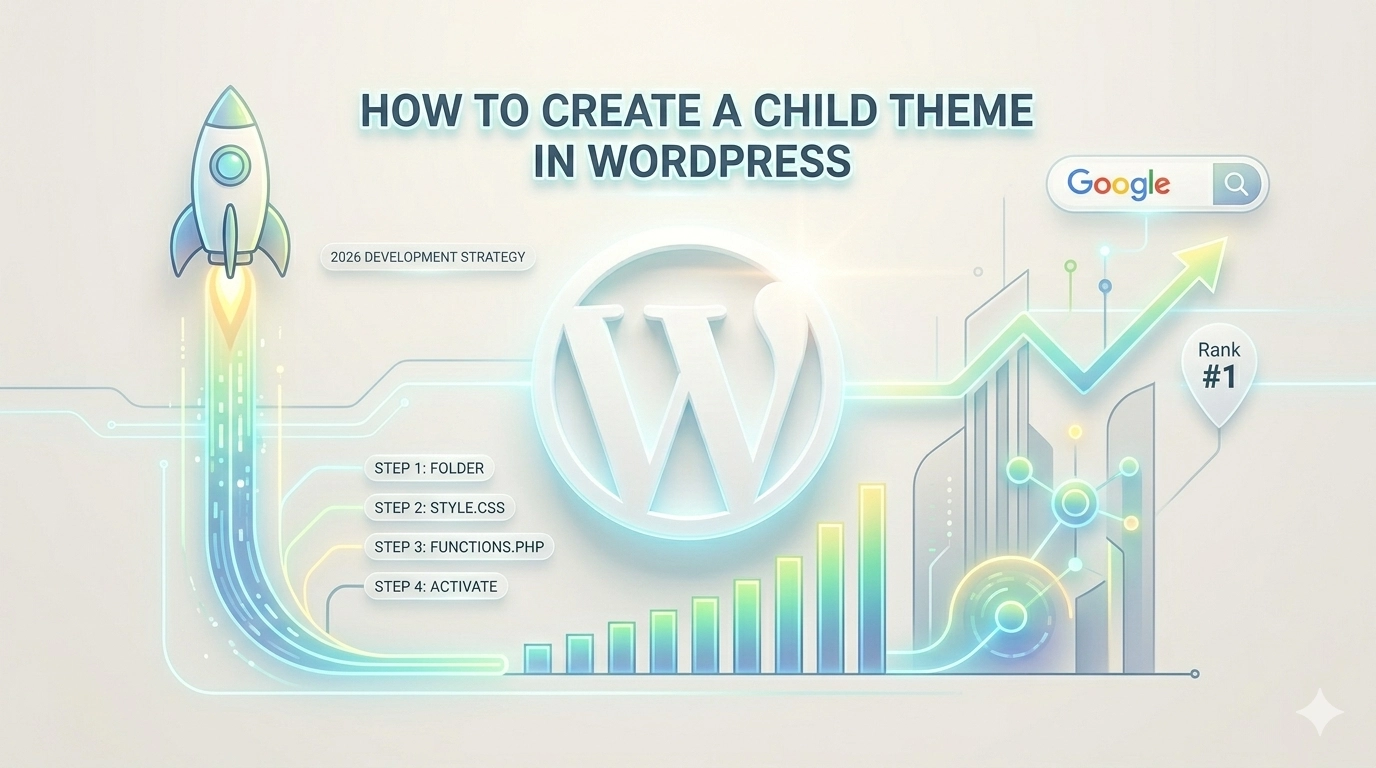
If you have ever spent hours tweaking your website’s design only to see those changes vanish after a theme update, you already understand the frustration of working without a safety net. Learning how to create a child theme in WordPress is one of the most important technical skills any site owner or developer can master. A child theme allows you to modify your site’s appearance and functionality without ever touching the original “parent” theme files. This approach ensures that your customizations remain intact even when the theme developer releases security patches or new features. In this guide, we will explore why this practice is essential for long-term site health and provide a clear roadmap for setting one up today.
1. What Exactly is a WordPress Child Theme?
A child theme is a sub-theme that inherits all the features, styling, and functionality of its parent theme. Think of the parent theme as the foundation and frame of a house, while the child theme is the interior design and custom additions.
-
Inheritance: By default, the child theme looks exactly like the parent.
-
Prioritization: WordPress checks the child theme folder first. If it finds a specific file (like
header.php) there, it uses it; otherwise, it falls back to the parent theme. -
Updates: Because the changes are stored in a separate folder, updating the parent theme will not overwrite your custom code.
2. Why You Should Always Use a Child Theme
Using a child theme is a best practice for several reasons:
-
Safety: It prevents the loss of custom CSS and PHP functions during updates.
-
Organization: It keeps your custom code separate from the massive codebase of the parent theme, making troubleshooting easier.
-
Learning: It provides a safe environment to experiment with code. If something breaks, you can simply deactivate the child theme to restore the site.
-
Performance: It is much faster than using a heavy “all-in-one” plugin to add small snippets of code.
3. How to Create a Child Theme in WordPress: Step-by-Step
While there are plugins that can do this for you, doing it manually gives you a better understanding of your site’s structure.
Step 1: Create a Folder
Log in to your site via FTP or your hosting File Manager. Navigate to /wp-content/themes/. Create a new folder. It is standard practice to name it after the parent theme with “-child” appended (e.g., twentytwentyfive-child).
Step 2: Create the Stylesheet (style.css)
Inside your new folder, create a file named style.css. Paste the following header information:
/*
 Theme Name:   Twenty Twenty-Five Child
 Template:     twentytwentyfive
*/
Note: The “Template” line must match the directory name of your parent theme exactly.
Step 3: Enqueue the Parent Styles
Create a file named functions.php in your child theme folder. This file tells WordPress to load the parent theme’s styles so your site doesn’t look like plain text.
<?php
add_action( 'wp_enqueue_scripts', 'my_theme_enqueue_styles' );
function my_theme_enqueue_styles() {
    wp_enqueue_style( 'parent-style', get_template_directory_uri() . '/style.css' );
}
?>
4. Customizing Your New Child Theme
Once you activate your theme in the WordPress dashboard, you can begin making changes.
-
Adding CSS: Add your custom styles directly into the child theme’s
style.cssfile. -
Editing Templates: If you want to change the footer, copy the
footer.phpfile from the parent folder into your child folder and edit it there. -
Adding Functions: Use the
functions.phpfile to add custom features, such as new widget areas or specialized hooks.
5. Avoiding Common Technical Errors
When you create a child theme in WordPress, small mistakes can lead to site-wide issues.
-
Permissions: Incorrect file permissions can trigger a 403 forbidden error in WordPress. Ensure your new folders are set to 755 and files to 644.
-
Syntax: One missing semicolon in
functions.phpcan cause a “White Screen of Death.” Always keep a backup of your original file. -
Media Optimization: When adding custom images to your theme files, remember to optimize images for web performance to maintain fast loading speeds.
6. Resources for Advanced Development
For those looking to go beyond basic styling, the WordPress Theme Developer Handbook is an invaluable resource. It covers complex topics like template hierarchy and child theme hooks that allow for deep customization without compromising site stability.
7. When Not to Use a Child Theme
If you only need to add a few lines of CSS, the “Additional CSS” section in the WordPress Customizer might be enough. However, if you plan to edit any PHP files or significantly restructure your site’s layout, a child theme is mandatory.
Conclusion
Knowing how to create a child theme in WordPress is a rite of passage for any serious website owner. It represents a shift from being a casual user to a disciplined site manager. By following the steps outlined above, you ensure that your website remains scalable, secure, and uniquely yours—no matter how many updates the theme developers release.