
Dirga Raj Lama
Web Developer
How to Fix Google Not Indexing WordPress Site: The Complete Recovery Guide
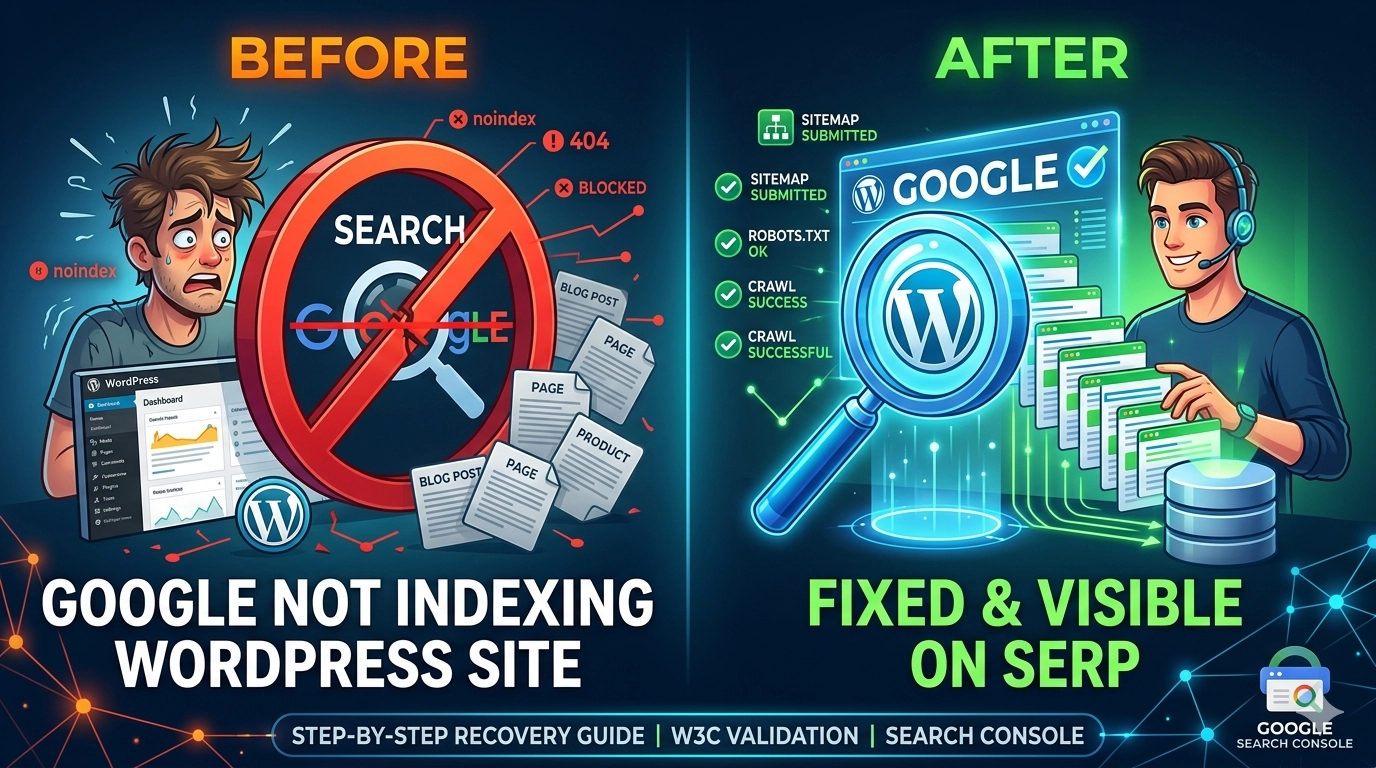
There is nothing more frustrating than spending hours crafting high-quality content only to find it completely missing from search results. If you are struggling with Google not indexing WordPress site pages, your visibility and organic traffic are essentially at a standstill. Indexing is the process where Google’s spiders (crawlers) visit your site, analyze the content, and add it to their massive database. When this process fails, it’s usually due to a technical “blocker”—ranging from a simple checkbox in your settings to complex issues with your site’s crawl budget. Identifying why your site is invisible is the first step toward reclaiming your spot on the search engine results pages (SERPs).
1. Check Your WordPress Reading Settings
Before diving into technical code, check the most common (and simple) reason for Google not indexing WordPress site content: the “Search Engine Visibility” setting.
In your WordPress dashboard, navigate to Settings > Reading. At the bottom, you will see a checkbox labeled “Discourage search engines from indexing this site.” If this is checked, WordPress adds a “noindex” tag to every page on your site, telling Google to stay away. Ensure this box is unchecked and save your changes. It is surprisingly common for developers to leave this on during a staging phase and forget to turn it off after launch.
2. Verify Your Site in Google Search Console
If you haven’t already, you must connect your website to Google Search Console. This is the only way to see exactly how Google views your site.
Once verified, use the URL Inspection Tool. Paste the URL of a page that isn’t appearing in search. Google will tell you the exact status, such as:
-
Discovered – currently not indexed: Google knows the page exists but hasn’t crawled it yet.
-
Crawled – currently not indexed: Google visited the page but decided not to add it to the index (often due to low quality or duplicate content).
-
Excluded by ‘noindex’ tag: There is still a tag in your code blocking the crawler.
3. Submit an XML Sitemap to Fix Google Not Indexing WordPress Site issues
A sitemap acts as a roadmap for Google’s crawlers. If your site structure is complex, Google might miss some of your pages. To fix Google not indexing WordPress site problems, you need to ensure your sitemap is up to date and submitted.
If you use an SEO plugin like Yoast or Rank Math, your sitemap is generated automatically (usually found at yourdomain.com/sitemap_index.xml). Copy this URL, go to the “Sitemaps” section in Search Console, and paste it. This “pings” Google, inviting the crawlers to visit all your listed URLs.
4. Audit Your Robots.txt File
The robots.txt file is a set of instructions for web robots. If it is configured incorrectly, it can block Googlebot from accessing vital parts of your site.
- To check yours, visit
yourdomain.com/robots.txt. - Look for the line:
Disallow: /. - If you see this, you are telling all robots to ignore your entire site.
For a standard WordPress setup, your robots.txt should allow access to your content while blocking backend areas like /wp-admin/. Correcting these directives is a critical step to fix Google not indexing WordPress site errors.
5. Address “Crawl Budget” and Site Speed
Google does not have infinite resources. It assigns a “crawl budget” to every site based on its authority and performance. If your site is extremely slow, the crawler might time out and leave before it reaches your new posts.
In 2026, page speed is a significant indexing factor. Use tools like PageSpeed Insights to ensure your site loads quickly. If your server is constantly crashing or slow to respond, Google will crawl your site less frequently, leading to delayed indexing or total exclusion.
6. Fix Issues with Low-Quality or Duplicate Content
Sometimes, the reason for Google not indexing WordPress site pages is “thin content.” If your page only has a few sentences or heavily overlaps with another page on your site, Google may choose to ignore it to save space in its index.
- Ensure uniqueness: Every page should provide distinct value.
- Avoid “canonical” confusion: Ensure your canonical tags point to the correct version of the URL (e.g., ensuring
httpsandwwwversions don’t compete).
7. Build Internal and External Links
Google finds new content primarily through links. If a new page is “orphaned” (meaning no other pages link to it), the crawler may never find it.
- Internal Linking: Link your new blog posts from your homepage or existing high-traffic articles.
- External Linking: Getting a link from a reputable external site acts as a “vote of confidence,” signaling to Google that your site is worth crawling and indexing immediately.
Conclusion
A Google not indexing a WordPress site issue can feel like a disaster, but it is almost always solvable with a systematic technical audit. Start with the basics: check your WordPress settings, verify your Search Console data, and ensure your sitemap is working. If you provide a fast, accessible, and high-quality experience, Google will eventually find and reward your content. Stay proactive with your site maintenance, and you’ll ensure that your hard work never goes unseen again.
Helpful article 👍👍