
Dirga Raj Lama
Web Developer
How to Fix 403 Forbidden Error in WordPress: A Step-by-Step Guide
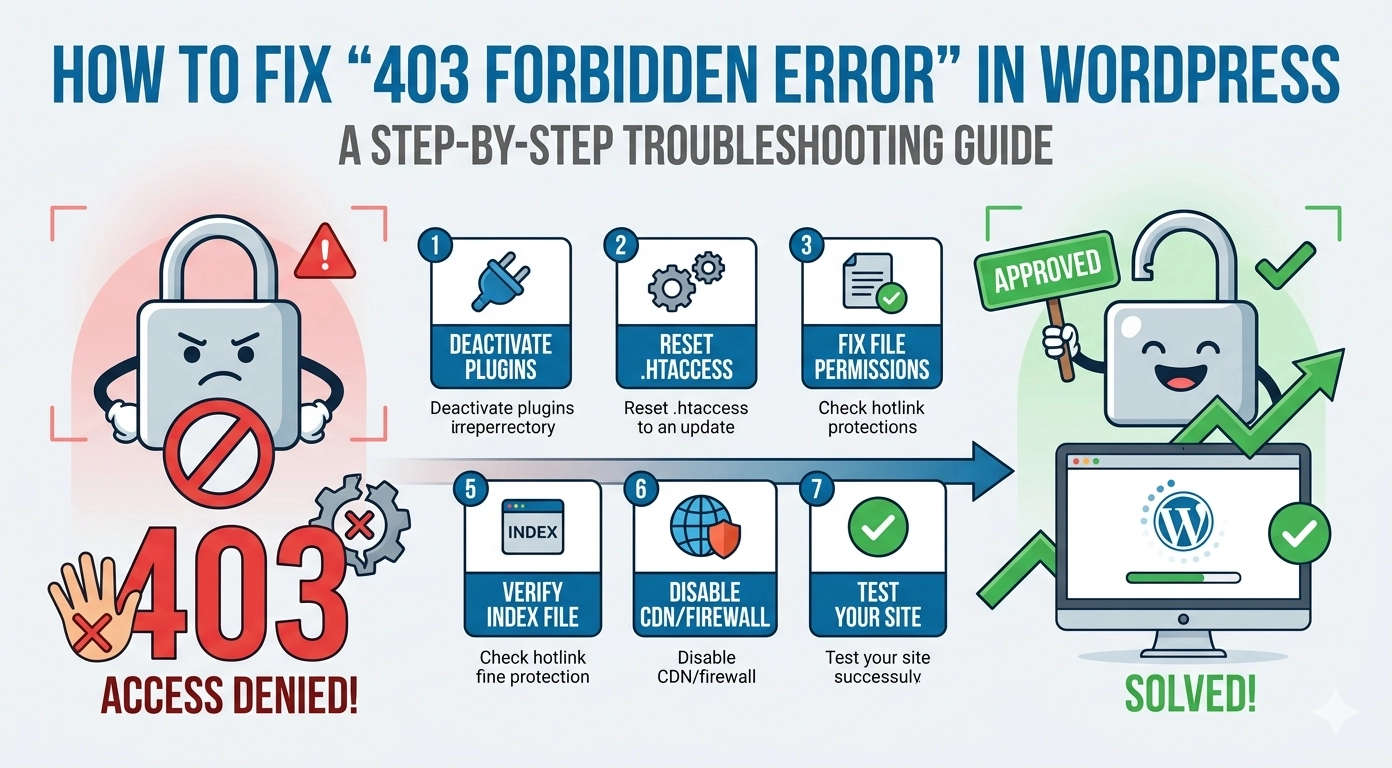
Few things are more jarring than navigating to your website only to be met with a cold, “Access Denied” message. Learning how to fix 403 Forbidden error in WordPress is a critical skill for any site owner because this error effectively locks out both you and your visitors. A 403 error occurs when your server understands the request but refuses to fulfill it due to permission issues. Whether it’s caused by a security plugin, a corrupted file, or incorrect server settings, this guide will walk you through the proven methods to regain access to your site.
What Causes the 403 Forbidden Error?
In the world of HTTP status codes, the 403 error is unique. Unlike a 404 (Not Found) or a 500 (Internal Server Error), a 403 error is a deliberate block. The most common culprits include:
- Corrupted .htaccess file: A single wrong line of code in this configuration file can lock down your entire site.
- Incorrect File Permissions: If your folders or files are set to the wrong numerical permission code, the server won’t allow access.
- Faulty Security Plugins: Sometimes, security plugins overreach and block legitimate IP addresses or actions.
- Missing Index Page: If you try to access a directory that doesn’t have an
index.phporindex.htmlfile.
Method 1: Deactivate WordPress Plugins
Often, a security plugin or a recent update to a firewall plugin is the reason you need to know how to fix 403 Forbidden error in WordPress.
To test this, you’ll need to deactivate all plugins. If you can’t access your dashboard:
- Connect to your site via FTP or File Manager in cPanel.
- Navigate to the
wp-contentfolder. - Rename the
pluginsfolder toplugins_old. - Check your site. If the error is gone, one of your plugins was the cause. Rename the folder back to
pluginsand reactivate them one by one to find the culprit.
Method 2: Repair the Corrupted .htaccess File
The .htaccess file is a powerful configuration tool, but it is easily corrupted.
- Connect to your server and locate the
.htaccessfile in your root directory. - Download a backup to your computer, then delete the file from the server.
- Try to load your website. If it works, you’ve found the problem.
- To generate a fresh, clean
.htaccessfile, go to your WordPress dashboard, navigate to Settings > Permalinks, and click Save Changes.
Method 3: Fix File and Folder Permissions
Incorrect permissions are a primary reason why users search for how to fix 403 Forbidden error in WordPress. Every file and folder on your server has an access code. If these are set incorrectly, the server “forbids” entry.
Standard WordPress Permissions:
- Folders: Should be set to 755 or 750.
- Files: Should be set to 644 or 640.
- wp-config.php: Should be set to 440 or 400 for maximum security.
You can change these by right-clicking folders/files in your FTP client and selecting “File Permissions.” Ensure you apply the changes recursively to directories and files separately.
Method 4: Check the “Index” File
If you see the 403 error when trying to access a specific directory (like yoursite.com/images/), it might be because the server is configured to prevent “Directory Browsing” and there is no index.php file present. To fix this, ensure your main WordPress directory contains an index.php file. If it’s missing, you can upload a fresh copy from a standard WordPress installation zip.
Method 5: Deactivate Your CDN or Firewall
If you use a service like Cloudflare or Sucuri, the 403 error might be happening at the edge server level before it even reaches your WordPress host.
- Temporarily Pause Cloudflare or your Web Application Firewall (WAF).
- Clear your browser cache and reload.
- If the site works, you may need to whitelist your IP address within your firewall settings.
Method 6: Check for Hotlink Protection
Some hosting providers or security plugins offer “Hotlink Protection” to prevent other sites from stealing your images. If misconfigured, this can trigger 403 errors on your media files, making images appear broken. Check your cPanel under the “Security” section to ensure Hotlink Protection isn’t accidentally blocking your own domain.
Summary Checklist for 403 Errors
| Step | Action | Potential Fix |
| 1 | Rename Plugin Folder | Identifies software conflicts. |
| 2 | Reset .htaccess | Fixes server configuration errors. |
| 3 | Set Folders to 755 | Corrects directory access levels. |
| 4 | Set Files to 644 | Corrects individual file access. |
Conclusion
While intimidating, the 403 Forbidden error is usually just a communication breakdown between your files and your server. By systematically checking your plugins, resetting your .htaccess file, and ensuring your permissions are set to the industry standard of 755 and 644, you can successfully learn how to fix 403 Forbidden error in WordPress without losing any data.