
Dirga Raj Lama
Web Developer
How to Fix Database Import Errors in WordPress: A Comprehensive Guide
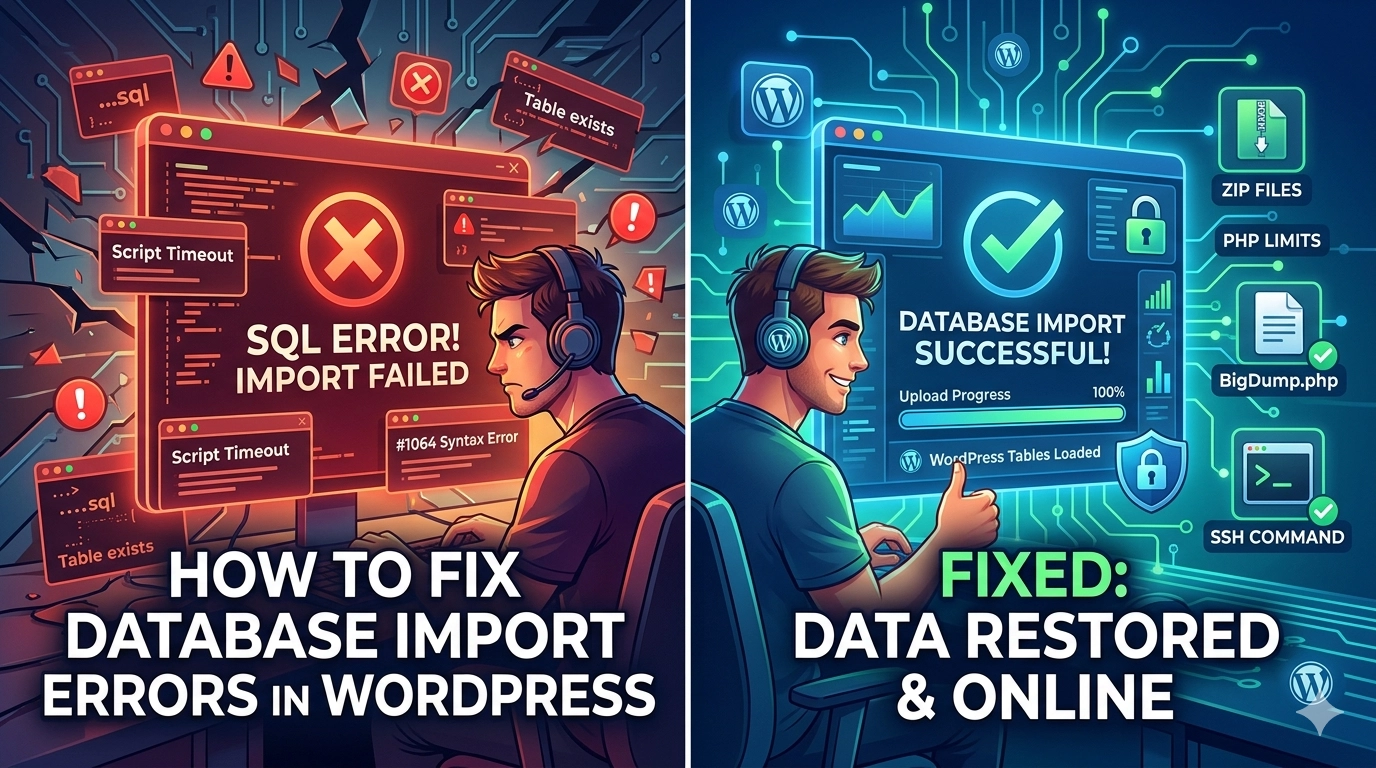
The database is the heart of your website, containing everything from your blog posts and user data to your critical configuration settings. However, during a site migration or a manual backup restoration, you may encounter a brick wall in the form of a failed SQL upload. If you are struggling to fix database import errors in WordPress, you likely feel the pressure of potential data loss or extended downtime. These errors, often labeled as “Script timeout,” “Incorrect format,” or “MySQL said: #1064,” are usually caused by server resource limitations, version incompatibilities between MySQL environments, or file size restrictions. Understanding how to navigate these technical hurdles is essential for any developer or site owner looking to maintain a healthy web presence.
Common Causes of Database Import Failures
Before we jump into the solutions, it is important to identify why your import failed. When you try to fix database import errors in WordPress, the “why” often dictates the “how.”
- File Size Limits: Most shared hosting providers limit file uploads to 50MB or 128MB. If your database is larger, the server will reject it.
- Execution Timeouts: Large databases take time to process. If the server’s “Max Execution Time” is too low, the process will cut off halfway.
- SQL Compatibility: Moving from an older server (running MySQL 5.7) to a newer one (running MariaDB 10.11) can cause syntax errors.
- Incomplete Exports: If the original
.sqlfile was not exported correctly, it will be missing the necessary syntax to complete the import.
1. Zip Your SQL File to Bypass Upload Limits
The simplest way to fix database import errors in WordPress caused by file size restrictions is to compress the file.
How to Fix It:
Instead of trying to upload a raw .sql file, right-click it and compress it into a .zip or .gzip format. phpMyAdmin and most database tools can natively extract these during the import process. This can reduce a 200MB file down to 30MB, often sliding right under the server’s upload ceiling. For more complex site issues, you may also want to learn how to audit a broken WordPress website to ensure no other underlying errors are present.
2. Increase PHP and MySQL Limits
If your import starts but then stops with a “504 Gateway Timeout” or “Script Timeout” error, your server needs more time and memory to process the data.
How to Fix It:
Edit your php.ini file or ask your host to increase these values:
-
max_execution_time = 300 -
max_input_time = 300 -
memory_limit = 256M -
upload_max_filesize = 256M
By extending these limits, you provide the necessary resources for the server to finish the import without timing out. You can find more details on server-side requirements in the official WordPress.org database optimization guide.
3. Use BigDump for Massive Databases
When a database is several gigabytes in size, even increased PHP limits might not be enough. In this case, to fix database import errors in WordPress, you should use a tool called BigDump.
How to Fix It:
BigDump is a free PHP script that splits your large .sql file into tiny chunks and imports them one at a time. This prevents the server from hitting its execution limit because each “chunk” only takes a few seconds to process. Simply upload the BigDump script and your SQL file to your server via SFTP, run the script from your browser, and watch the progress bar finish successfully.
4. Resolve Version Incompatibility Errors (#1064 Syntax Error)
Sometimes you will see a message saying “MySQL said: #1064 – You have an error in your SQL syntax.” This usually happens when the source database uses a feature that the destination database doesn’t recognize.
How to Fix It:
When exporting your database from the old site via phpMyAdmin, go to the “Custom” export method. Under “Format-specific options,” look for “Database system or older MySQL server to maximize output compatibility with:” and select the version that matches your new server. This ensures the exported code is written in a “language” your new server understands.
5. Clear the Destination Database
A frequent reason people fail to fix database import errors in WordPress is that they are trying to import data into a database that already contains tables. This leads to “Table already exists” errors.
How to Fix It:
Before importing, go to the “Structure” tab in phpMyAdmin, scroll to the bottom, click “Check All,” and select “Drop” from the dropdown menu. This wipes the database clean (ensure you have a backup first!), providing a fresh canvas for your new data import.
6. Import via Command Line (SSH)
For professional developers, the most reliable way to fix database import errors in WordPress is to bypass the web interface entirely and use the command line.
How to Fix It:
Connect to your server via SSH and use the following command: mysql -u username -p database_name < backup.sql The command line has significantly higher resource limits than a web browser, making it almost impossible for the import to fail due to timeouts or file size.
Conclusion
Importing a database doesn’t have to be a stressful experience. By understanding server limits, using compression, and relying on tools like BigDump or the command line for larger files, you can fix database import errors in WordPress efficiently. Remember that the database is a fragile set of instructions; always ensure your exports are clean and your destination environment is prepared before you hit that import button. With these techniques in your toolkit, site migrations and restorations will become a seamless part of your workflow.