
Dirga Raj Lama
Web Developer
How to Audit a Broken WordPress Website
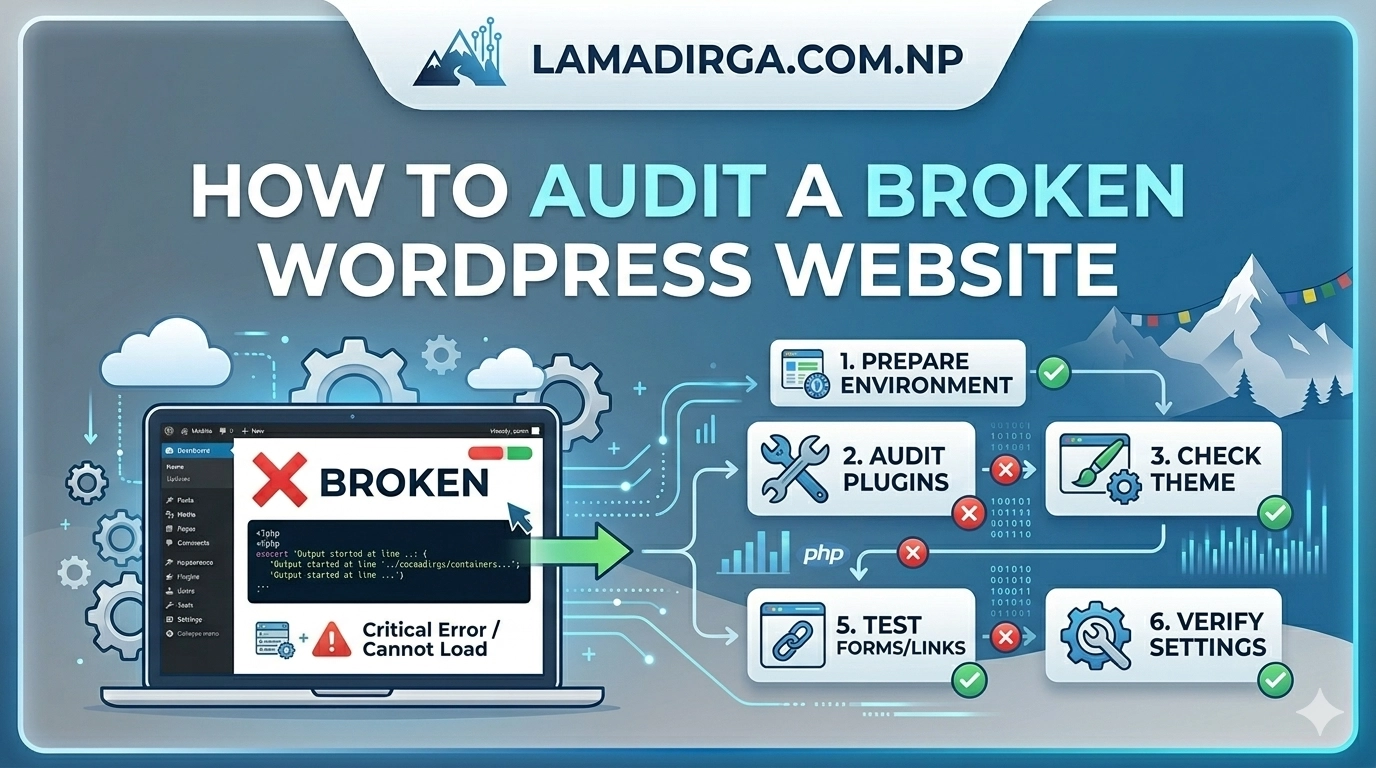
There is nothing quite as stressful for a site owner as waking up to a “Critical Error” message or a layout that has completely fallen apart. When your site stops functioning, the first instinct is often to start changing settings at random, but this can often make matters worse. If you want to restore your site effectively, you must learn how to audit a broken WordPress website using a structured, logical approach. By auditing the core files, database, and plugin environment, you can identify the “smoking gun” and implement a permanent fix rather than a temporary patch. In this guide, we will walk through the essential technical audit steps to get your WordPress site back online.
1. Check the “Site Health” tool.
Before diving into the code, check if WordPress can diagnose itself. WordPress has a built-in tool located under Tools > Site Health.
- The Audit: Look for the “Status” tab. It will highlight critical issues such as outdated PHP versions, missing REST API functionality, or SQL server errors.
- Why it matters: Often, a “broken” site is simply a server configuration issue that WordPress is already aware of. If you see API errors here, you should immediately look into how to fix REST API not working in WordPress to restore communication between your editor and the server.
2. Enable WP_DEBUG Mode
If your site is showing a “White Screen of Death,” you need to see the underlying PHP errors. By default, WordPress hides these errors from visitors for security reasons.
- The Action: Access your
wp-config.phpfile via FTP or Cpanel. Find the line that saysdefine( 'WP_DEBUG', false );and change it totrue. - The Audit: Refresh your broken page. Instead of a blank screen, you will now see specific file paths and line numbers indicating where the code is failing. This is the fastest way to see if a specific plugin is causing a fatal error.
3. Audit for Plugin and Theme Conflicts
The most common reason for a broken site is a conflict between two plugins or an update that is incompatible with your theme.
- The “Deactivation” Test: If you cannot access your dashboard, use FTP to rename your
/wp-content/plugins/folder. If the site comes back, you know the issue is a plugin. - The Theme Check: Switch to a default WordPress theme (like Twenty Twenty-Four). If the site fixes itself, your current theme has a syntax error or is outdated. If you are a developer, this is the time to review your WordPress theme development standards to ensure everything is up to date.
4. Fix Permalinks: How to Audit a Broken WordPress Website for 404s
Sometimes a site isn’t “crashed,” but it is “broken” because images aren’t loading and links lead to 404 errors. This usually points to an issue with your .htaccess file or permalink structure. Go to Settings > Permalinks and hit “Save Changes.” This flushes the rewrite rules and often restores the site structure immediately. Using a tool like Screaming Frog can help you find these broken paths during your audit.
5. Review Server Resources and PHP Limits
As you audit a broken WordPress website, you might find that the site only breaks when performing heavy tasks (like loading a large WooCommerce shop). This often indicates that your server is running out of memory.
- The Audit: Check your PHP error logs for “Allowed memory size exhausted” messages.
- The Fix: Increase your memory limit in
wp-config.php. If your store is particularly heavy, you might want to read a WooCommerce store case study to see how high-performance environments are structured to prevent these crashes.
6. Inspect Security and Malware
A broken site can sometimes be a sign of a security breach. Hackers often inject scripts that break the site’s layout or redirect users to malicious URLs.
- The Audit: Use a security scanner like Sucuri or Wordfence. Look for “unidentified files” in your root directory or changes to your core files.
- The Fix: If you find malware, you must clean the site immediately. We recommend following the Sucuri WordPress security guide for a deep-cleaning protocol.
7. Database Integrity Audit
WordPress is database-driven. If your database is “corrupted,” your site will fail to load content even if your files are perfect.
- The Audit: Access phpMyAdmin through your hosting dashboard. Select your database and use the “Check Table” and “Repair Table” functions.
- Signs of Trouble: If you see “Error establishing a database connection,” your credentials
wp-config.phpare likely wrong or your database server is down.
8. Performance and Caching Audit
Sometimes the site appears broken because of “stale” cache. If you’ve updated a plugin but the site still looks like the old version, or the CSS is missing, your cache is the culprit.
-
The Action: Clear your browser cache, your plugin cache (WP Rocket/LiteSpeed), and your CDN cache (Cloudflare). Always turn off “Rocket Loader” in Cloudflare when auditing, as it frequently breaks JavaScript execution in WordPress.
Conclusion
Knowing how to audit a broken WordPress website is a vital skill for any web developer or business owner. By moving through this checklist—Site Health, Debug Mode, Plugin Conflicts, and Server Resources—you can turn a “catastrophic” crash into a simple 10-minute fix. Remember to always keep a full backup of your site before starting an audit, so you have a safe “return point” if things go wrong.
Need help with specific errors? If you are seeing code snippets instead of your site, check out my tutorial on how to fix “Headers Already Sent” error in WordPress for a quick solution!