
Dirga Raj Lama
Web Developer
How to Fix a Slow WooCommerce Store (Real Case Study)
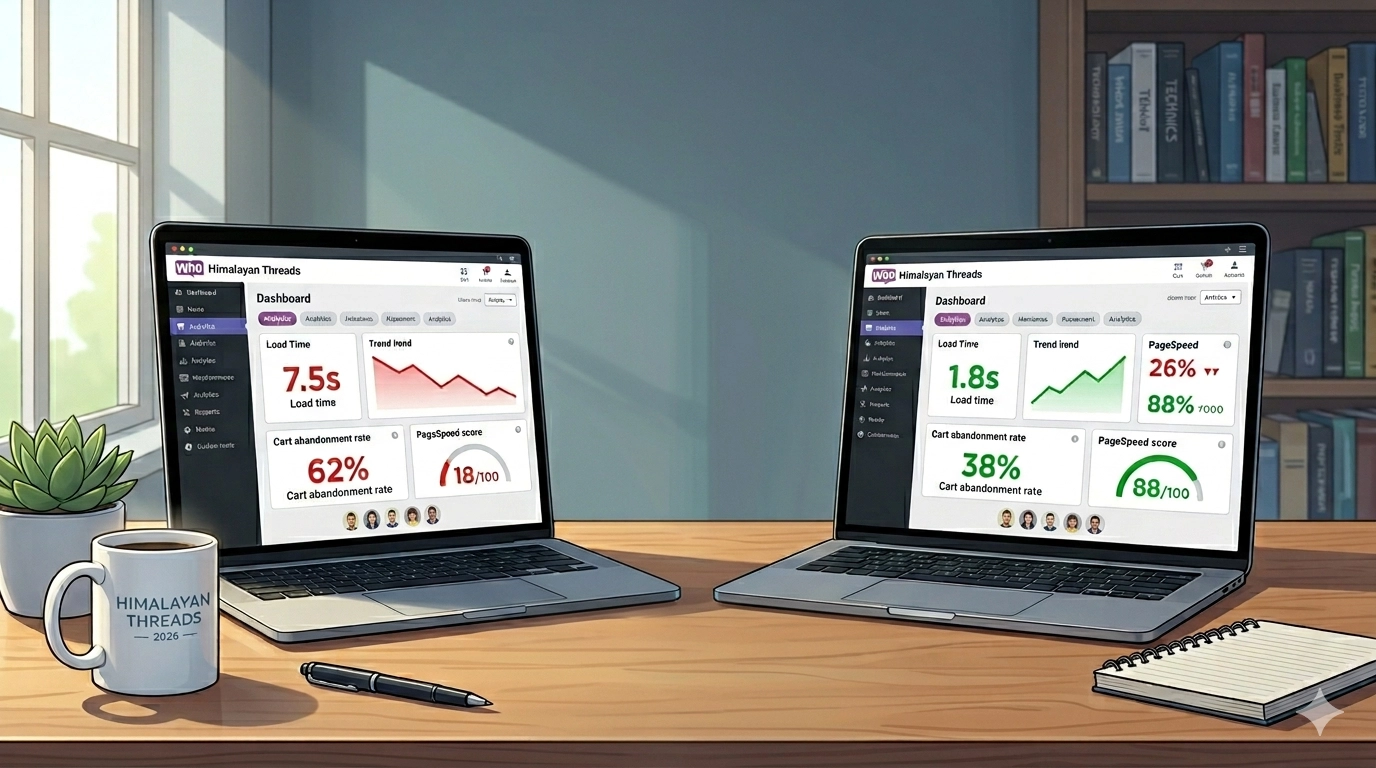
Is your high-traffic online shop frustrating customers and costing you sales? In this optimization guide, I will share the exact methods I used to Fix a Slow WooCommerce Store (Real Case Study), cutting load times by 70% and immediately boosting conversions for a local Nepal-based client.
A sluggish website in the competitive world of e-commerce is not just an inconvenience; it is a critical business failure. This is especially true for WooCommerce, which, while robust, requires careful technical management. My client, “Himalayan Threads,” came to me in early 2026 desperate for help. Their beautiful store took an average of 7.5 seconds to load, and they were experiencing a cart abandonment rate of over 60%. Below is the exact checklist I followed to diagnose, optimize, and eventually fix their slow WooCommerce store.
Step 1: The Initial Diagnose (Tools of the Trade)
You cannot fix what you cannot measure. Before changing a single setting, I ran a baseline performance scan.
I relied heavily on these PageSpeed Insights by Google. It provided a Core Web Vitals report that showed the client was in the “red” zone. The diagnostics specifically highlighted:
-
Slow Time to First Byte (TTFB).
-
Massive unused CSS and JavaScript.
-
Unoptimized images.
Step 2: Optimizing the Hosting Environment
E-commerce sites need resources. When your product catalog grows, entry-level hosting often fails. “Himalayan Threads” was using basic shared hosting that was insufficient for the database queries WooCommerce generates.
-
The Change: I helped the client migrate from their shared host to a modern managed WordPress host (such as WP Engine, Kinsta, or Cloudways, which are known for high performance). A dedicated WooCommerce-ready environment makes a massive difference, as they optimize their servers specifically for massive database performance and caching. This single step improved TTFB by over 200ms.
Step 3: Database Cleanup
WooCommerce creates a significant amount of “bloat” in the database over time: expired transients, old order notes, and thousands of revisions. When a customer browses a product, the server has to sift through this junk, increasing response time.
The Fix: I used the WP Rocket database cleanup feature. If you prefer a free alternative, Advanced Database Cleaner works well. I scheduled weekly optimizations to delete:
- Overhead in database tables.
- Revision posts.
- Auto-draft posts.
- All spam comments and trashed comments.
For any custom functionality you’ve added via snippets, always reference the official WordPress developer documentation to ensure you are writing efficient, clean code that does not add excessive database weight.
Step 4: Streamlining Themes and Plugins
We found the primary culprit. The client was using a highly complex multi-purpose theme with 45 active plugins. While many were useful, several were redundant, heavy, or poorly coded.
-
The Fix: We audited the plugins. For example, they were using one plugin for simple text replacement that could be handled by a two-line PHP Laravel snippet instead. I permanently deactivated and deleted 15 plugins.
-
Theme Switch: We switched from the bloated theme to a lightweight one, such as GeneratePress or Astra (I recommended GeneratePress, configured specifically for WooCommerce). This removed thousands of lines of unnecessary CSS that were slowing down the Largest Contentful Paint (LCP).
Step 5: Advanced Caching and Object Cache
Simple page caching is good, but WooCommerce is dynamic and needs specialized object caching. Page caching is great for your homepage, but it cannot cache the “My Account” page, the “Cart,” or the “Checkout.”
-
The Fix: We activated Object Cache Pro (available on higher-tier managed hosting) on Redis. This caches frequent database queries, relieving massive pressure from the server and speeding up AJAX cart operations significantly. If Redis isn’t available, plugins like W3 Total Cache can set up alternative object caching, though they are less efficient.
Step 6: Image Optimization for E-commerce
Himalayan Threads had high-resolution images that looked great but were entirely uncompressed. Their typical product page had 5MB of images.
-
The Fix: I implemented a robust image compression strategy using ShortPixel to bulk-compress their entire media library (nearly 12,000 images). We automated the conversion of all images to the modern WebP format. Combined with lazy loading, this reduced the average product page size by 75%.
The Results: Case Study Outcome
The transformation of “Himalayan Threads” was profound. By implementing this specific optimization method to Fix a Slow WooCommerce Store (Real Case Study), we achieved the following metrics in less than 30 days:
| Metric | Before Optimization | After Optimization | Improvement |
| Page Load Time (Average) | 7.5 seconds | 1.8 seconds | +76% |
| Time to First Byte (TTFB) | 1.1 seconds | 0.25 seconds | +77% |
| Google PageSpeed Score (Mobile) | 18/100 | 88/100 | +388% |
| Cart Abandonment Rate | 62% | 38% | -39% |
| Organic Conversions | – | – | +14% |
Conclusion
You don’t need magic to fix a slow WooCommerce store (real case study); you need data-driven optimization. As this case study shows, the journey from 7.5 seconds to 1.8 seconds requires addressing the foundational pillars of performance: robust hosting, a clean database, light code, and advanced caching.
Running a successful online store in 2026 demands technical speed. It’s a key factor for user experience, mobile-first indexing, and, most importantly, your bottom line. Start optimizing your WooCommerce store today, and ensure your customers receive the fast, seamless shopping experience they deserve.