
Dirga Raj Lama
Web Developer
How to Remove Malware from WordPress Site: 7-Step Recovery Guide
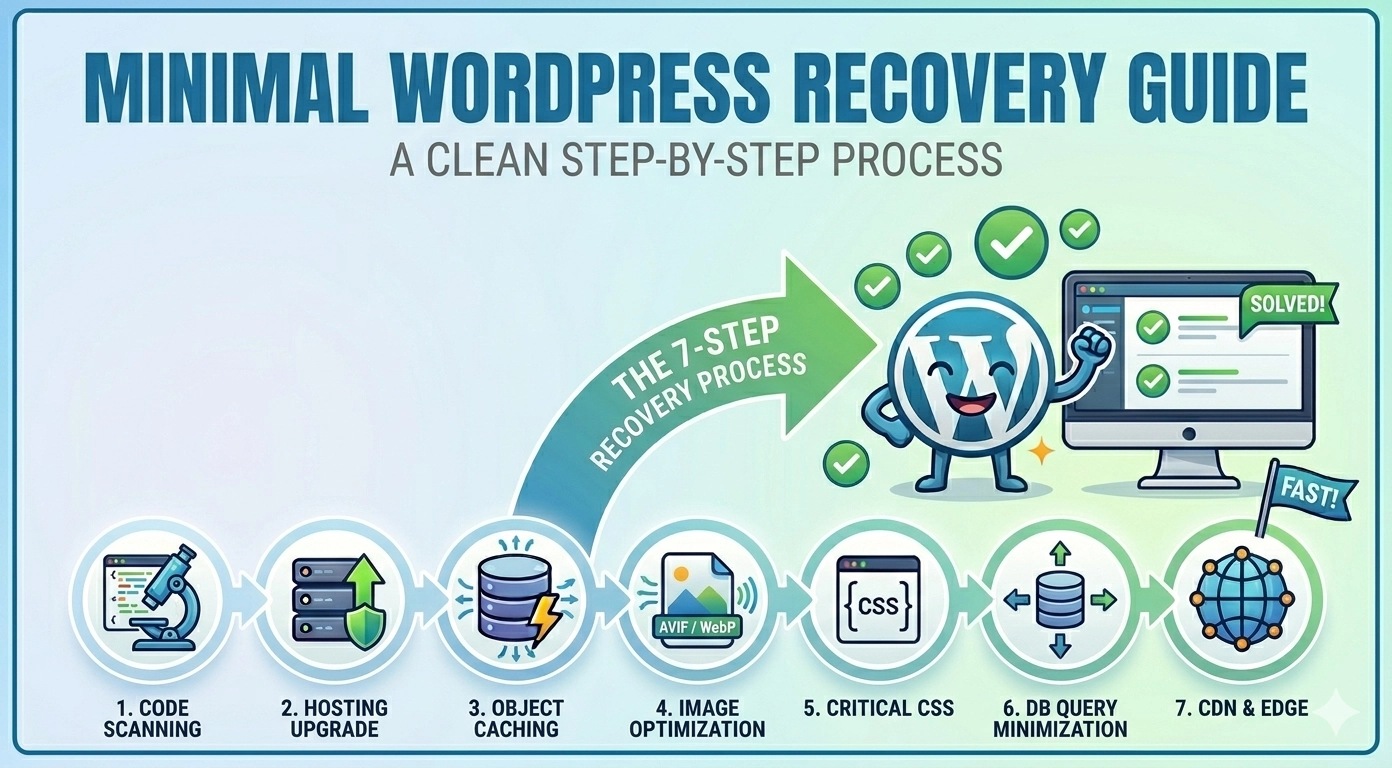
Discovering your website has been compromised is a digital nightmare. Learning how to remove malware from WordPress site immediately becomes your top priority, as malicious code can steal data, destroy your SEO rankings, and infect your visitors. A hacked site often shows symptoms like Google “Red Screen” warnings, unexpected redirects, or strange files appearing in your dashboard. This guide will walk you through a systematic, technical, yet accessible 7-step process to reclaim your site and purge it of hidden infections.
Prerequisite: Do Not Skip This Step
Before you touch a single file, you must take a full backup of your current, infected site. While it seems counterintuitive to back up malware, if you accidentally delete a critical system file during the cleaning process, you will need this backup to restore the site to its “broken but fixable” state. Use your hosting cPanel to create a full backup (databases and files) or a plugin like UpdraftPlus if you still have dashboard access.
Step 1: Conduct a Comprehensive Malware Scan
Your first task is identifying where the infection resides. Do not rely on only one method.
The Initial “Outside-In” Scan
- Use Google Safe Browsing: Use the
site:yourdomain.comsearch in Google to see if any pages have been flagged. Check your Google Search Console under Security & Manual Actions > Security Issues. - Run an External Remote Scan: Use a free tool like Sucuri SiteCheck to get a quick external audit of known malicious scripts.
The Deep “Inside-Out” Scan
-
Renegade your dashboard and install a reputable security plugin, specifically Wordfence Security. Run a “Full Scan.” Wordfence will compare your core files, themes, and plugins against the official WordPress repository versions, highlighting any modified or non-standard files.
Step 2: Manually Clean Infected WordPress Core Files
This is the most critical manual step when learning how to remove malware from WordPress site. Hacked core files are common.
- Access your site files via FTP (using FileZilla) or your hosting File Manager.
- Download a fresh copy of WordPress from WordPress.org.
- On your infected server, delete the
wp-adminandwp-includesfolders entirely. Do not touch thewp-contentfolder or thewp-config.phpfile. - Upload the fresh
wp-adminandwp-includesfolders from your new WordPress download to the server, replacing the deleted ones.
Step 3: Sanitize Your wp-content Folder
Malware loves to hide in wp-content, where your unique data lives.
- Navigate to
/wp-content/themes/. If you see themes you are not using, delete them. Manually check your active theme’sfunctions.phpfile for obscure code. - Navigate to
/wp-content/plugins/. Identify any non-standard or recently added folders. Note: Often the easiest fix here is to delete all plugin folders and reinstall fresh copies from the WordPress repository. - Check the
/wp-content/uploads/folder. This should only contain images and media. If you see.php,.js, or executable files here, delete them.
Step 4: Inspect Your wp-config.php and .htaccess Files
These two files are critical configuration hubs and are high-priority targets.
wp-config.php: Open this file and check for any complex, obfuscated (hard-to-read) code at the very top, especially code containingbase64_decodeoreval. If something looks out of place, cross-reference it with a defaultwp-config.phpfile..htaccess: This file controls redirects and server access. If your site is redirecting visitors to malicious sites, the code is likely here. Replace the contents with the default WordPress.htaccessrules.
Step 5: Clean the WordPress Database
Sometimes malware hides in the database, often as malicious links or unauthorized admin users.
- Access phpMyAdmin through cPanel.
- Search your database tables (especially
wp_users,wp_options, andwp_posts) for terms like<script>,eval(, or known malicious URLs. Be extremely careful; editing the database incorrectly can destroy your site. If you are unsure, hire a professional for this step.
Step 6: Post-Hack Cleanup: Change All Passwords
The attackers likely have a backdoor or stole credentials.
- Change all WordPress Admin passwords.
- Change your FTP/SFTP password.
- Change your Database password (remember to update the
wp-config.phpfile with the new password immediately). - Change your hosting cPanel password.
Step 7: Final Rescan and Review Core Web Vitals
Once all files are replaced, plugins are reinstalled, and passwords are changed, run another “Full Scan” with Wordfence. The result should be clean. Review your site in Google Search Console. If your site was flagged with a red warning screen, use the “Security Issues” tab to “Request a Review” from Google, stating that the malware has been removed and the site is clean.
Summary Checklist for Malware Removal
| Step | Action | Potential Outcome |
| Prerequisite | Full Backup | Site can be restored if manual cleaning fails. |
| 1 | Wordfence Deep Scan | Identifies the specific infected files and folders. |
| 2 | Replace wp-admin & wp-includes |
Sanitizes core WordPress system files. |
| 3 | Sanitize uploads/ folder |
Removes malicious scripts hidden in media files. |
| 4 | Reset .htaccess |
Stops malicious site redirects. |
Conclusion
While the process of how to remove malware from WordPress site is technically demanding, it is a solvable problem. Success relies on a systematic approach: scanning, isolating critical folders, manually replacing core files, and securing access points. By following these 7 steps, you ensure that your site is purged of the infection, from the visible symptoms to the hidden backdoors.
Once clean, make prevention your priority: implement a firewall, use strong passwords, limit login attempts, and keep your core files, themes, and plugins updated.