
Dirga Raj Lama
Web Developer
How to Fix Slow WordPress Website (Step-by-Step) Guide for 2026
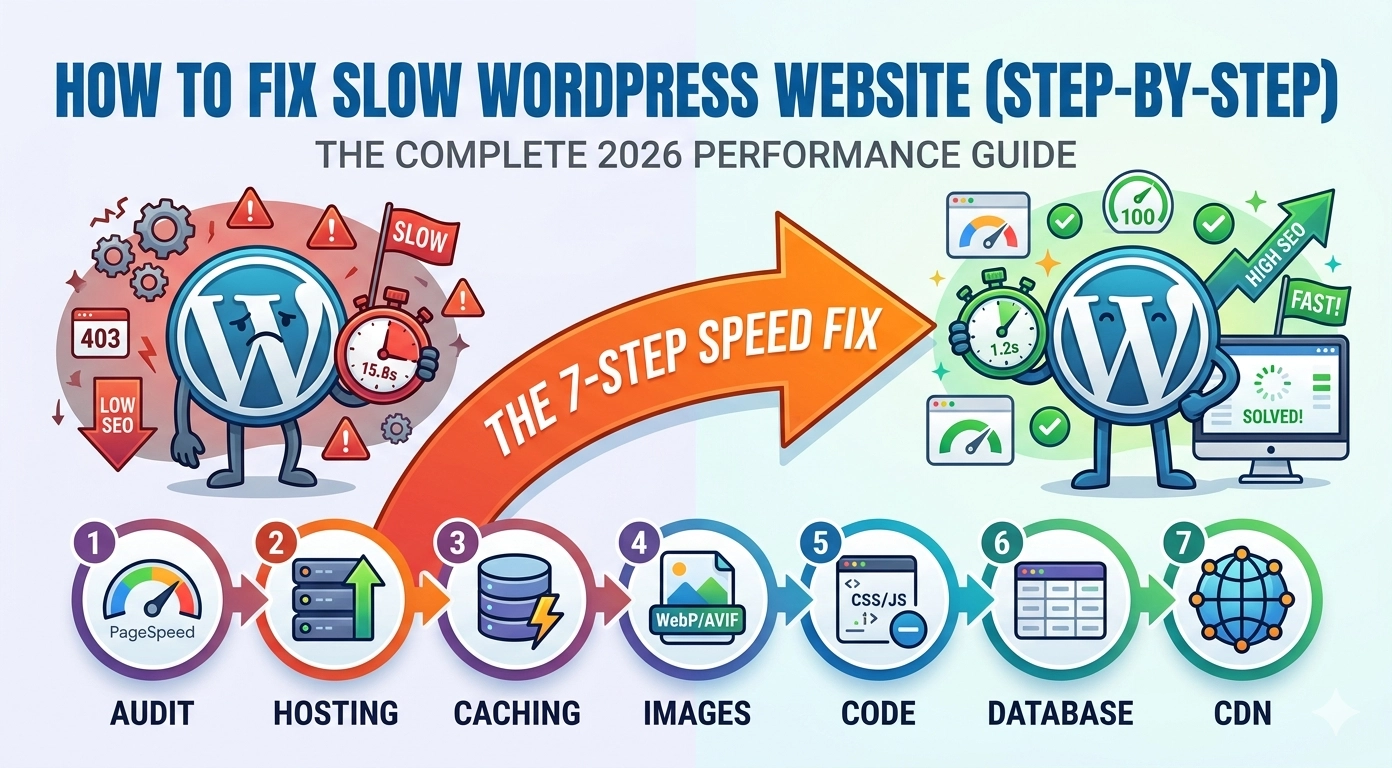
In the fast-paced digital world of 2026, a one-second delay can be the difference between a new customer and a bounced visitor. Learning how to fix slow WordPress website (step-by-step) is no longer just a “nice-to-have” skill—it is a business necessity. Google’s Core Web Vitals, specifically metrics like Interaction to Next Paint (INP) and Largest Contentful Paint (LCP), now play a massive role in where your site appears in search results. If your site feels sluggish, it’s likely due to a combination of bloated code, unoptimized images, or a “heavier” hosting environment than your traffic requires. This guide will walk you through the exact technical audit and optimization steps to get your site under the golden 2-second load time.
Step 1: Establish Your Speed Baseline
Before you change a single setting, you must know where you stand. You cannot manage what you do not measure.
- Tools to use: Use Google PageSpeed Insights and GTmetrix.
- What to look for: Focus on your TTFB (Time to First Byte). If your TTFB is higher than 0.8 seconds, your hosting server is likely the bottleneck.
- The Goal: Aim for a mobile score of 90+ to satisfy 2026 SEO standards.
Step 2: Upgrade Your Hosting Infrastructure
If you are building on a shaky foundation, no plugin can save you. In 2026, performance starts at the “Edge.”
- PHP 8.4+: Ensure your host supports the latest PHP versions. Moving from PHP 7.4 to 8.4 can literally double your execution speed.
- Object Caching (Redis/Memcached): This reduces the load on your database by storing frequently accessed data in the server’s RAM.
- NVMe Storage: Ensure your host uses NVMe SSDs rather than standard SSDs for faster data retrieval.
Step 3: Implement Advanced Caching
Caching creates a “static” version of your dynamic WordPress pages, so your server doesn’t have to rebuild them for every visitor.
- For LiteSpeed Servers: Use the LiteSpeed Cache plugin. It offers server-level caching that is significantly faster than PHP-based alternatives.
- For Nginx/Apache Servers: WP Rocket remains the gold standard for “plug-and-play” optimization.
- Preloading: Configure your cache to “preload” your links. This ensures that when a user clicks a page, it is already waiting for them.
Step 4: Optimize Images for 2026 (WebP & AVIF)
Images typically account for 60% of a page’s total weight. Traditional JPEGs are no longer sufficient.
- Convert to AVIF: This next-gen format offers better compression than WebP at higher quality. Use plugins like ShortPixel or Imagify to auto-convert your library.
- Implement Lazy Loading: Ensure only images “above the fold” load immediately.
- Explicit Dimensions: Always set
widthandheightattributes on your images to prevent CLS (Cumulative Layout Shift), which hurts your user experience scores.
Step 5: Master JavaScript and CSS Delivery
Modern themes often load huge files for small features. You need to “thin out” the code delivered to the browser.
- Defer Non-Critical JS: Use a plugin like Autoptimize to defer JavaScript so it doesn’t block the page from rendering.
- Generate Critical CSS: This technique identifies the CSS needed for the visible part of your page and inlines it, significantly improving your LCP score.
- Delay Third-Party Scripts: Scripts like Google Analytics or Facebook Pixels should be delayed until the user actually interacts with the page.
Step 6: Database Maintenance (The “Hidden” Speed Killer)
Over time, your database gets bloated with post revisions, spam comments, and expired transients.
- Limit Revisions: Add
define('WP_POST_REVISIONS', 5);to yourwp-config.phpto prevent your database from storing hundreds of copies of every blog post. - Automated Cleanup: Use WP-Optimize to schedule a weekly database “defrag.” This keeps your queries fast and efficient.
Step 7: Leverage a Global CDN with Edge Delivery
In 2026, the distance between your server and your visitor is the biggest cause of latency.
- Cloudflare APO: For a few dollars a month, Cloudflare can cache your entire HTML page on their global edge network. This makes your site feel like it’s loading from the visitor’s own city.
- Full Site Acceleration: Ensure your CDN isn’t just serving images but is also accelerating your dynamic content.
Summary Checklist
| Step | Action | Expected Result |
| 1 | Baseline Audit | Identify specific bottlenecks. |
| 2 | Hosting Upgrade | Lower TTFB and server response time. |
| 3 | Image Compression | Reduce page weight by 50%+. |
| 4 | Code Minification | Improve “Above the Fold” loading speed. |
Final Thoughts
Understanding how to fix slow WordPress website (step-by-step) is an ongoing journey, not a one-time task. As you add new features or content, your site’s weight will naturally increase. By following this 7-step technical framework and conducting monthly audits, you ensure that your WordPress site remains competitive, user-friendly, and highly visible in the 2026 search landscape.