


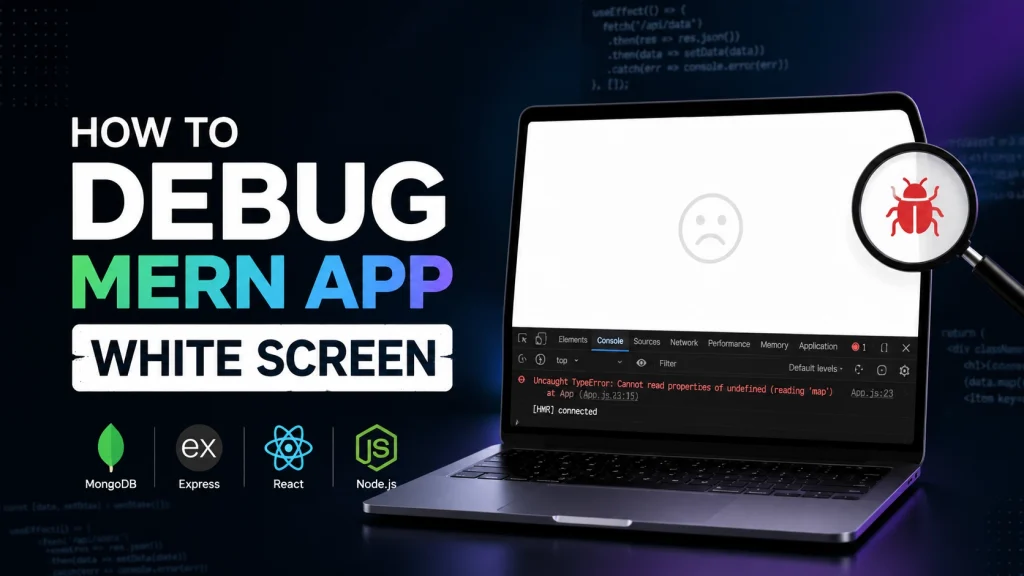
Every developer building with MongoDB, Express, React, and Node.js has faced the dreaded “White Screen of Death” (WSoD) at least once. You deploy your application or spin up your local development server, only to be greeted by a completely blank, sterile white page instead of your beautiful UI. This issue can be incredibly frustrating because it provides no immediate visual feedback on what went wrong. To get your application back up and running smoothly, you need a systematic approach to find the root cause. In this comprehensive guide, we will explore the top 5 ways to debug MERN app white screen and get your full-stack application running flawlessly.
1. Inspect the Browser Console for Client-Side Crashes
When a React application hits a fatal error during rendering, it often completely breaks the UI component tree, resulting in a blank page. Your very first line of defense is the browser’s developer tools.
- Open DevTools: Right-click anywhere on the white screen and select Inspect, then navigate to the Console tab.
- Look for Red Errors: Uncaught runtime errors, such as trying to access a property of an
undefinedobject (e.g.,Cannot read properties of undefined (reading 'map')), will show up here. - Analyze the Stack Trace: The console will point directly to the file and line number that triggered the crash.
If the crash happens only in production, it is highly recommended to implement React Error Boundaries (External Link) to catch these errors gracefully. Instead of a blank screen, an Error Boundary can display a custom fallback UI, keeping your user experience intact while logging the issue.
2. Verify Client-Side Routing and Catch-All Configurations
Sometimes, a white screen isn’t caused by a code crash, but rather because your app is technically rendering “nothing.” This frequently happens due to misconfigured client-side routing with libraries like React Router.
If a user navigates to a route that isn’t explicitly defined in your <Routes> configuration, and you haven’t set up a fallback, React might render an empty outlet.
How to Fix It:
-
Add a Catch-All Route: Always include a wildcard route at the very bottom of your routing configuration to handle 404 scenarios.
<Route path="*" element={<NotFoundComponent />} />-
Check Server-Side Routing: If the white screen occurs specifically when you refresh a page on a deployed site (like Heroku, Vercel, or AWS), your backend Express server or hosting provider needs a catch-all route. Ensure your Express backend serves the
index.htmlfile for any unrecognized requests, allowing React Router to handle the pathing properly on the frontend.
3. Audit Environment Variables and API Endpoint URLs
A classic culprit behind a deployed MERN app failing silently is a mismatch or omission of environment variables (.env files). If your React frontend attempts to make an API call to an undefined backend URL on initial load, the promise might reject silently or cause a fatal configuration error.
-
Frontend Prefixing: Remember that frameworks like Vite require environment variables to be prefixed with
VITE_(e.g.,VITE_API_URL), while Create React App does. If you forget the prefix, the variable will evaluate toundefined. -
Network Tab Inspection: Open your browser’s Network tab and refresh the page. Look for failed API requests (status codes 404, 500, or
Failed to load resource). If your frontend is trying to fetch data fromhttp://localhost:5000/apiwhile live in production, the application will stall out and potentially trigger a white screen.
4. Scrutinize Backend Server Logs and CORS Policies
A MERN app relies heavily on seamless communication between the Node.js/Express backend and the React frontend. If the backend fails to start or blocks the frontend’s requests, your UI components might lack the data required to render, causing a freeze.
-
Check Node.js Logs: Check your terminal or cloud logging platform (like PM2 or Render logs). Look for database connection failures. If your backend cannot connect to MongoDB Atlas due to an unwhitelisted IP address, your server might crash or hang indefinitely.
-
Cross-Origin Resource Sharing (CORS): If your backend doesn’t explicitly permit your frontend’s domain to access its resources, the browser will block the network request entirely. Ensure you have properly configured the CORS middleware in your Express app:
const cors = require('cors');
app.use(cors({ origin: 'https://your-frontend-domain.com' }));
5. Build Artifact and Dependency Analysis
If everything works perfectly on your local machine but turns into a white screen post-deployment, the problem likely lies within your production build folder or a corrupted dependency tree.
-
Test the Production Build Locally: Before pushing code to a live server, always run a local production build check. Run
npm run buildfollowed by a local preview command to ensure the compiled JavaScript chunks load without throwing compilation errors. -
Check File Paths in index.html: Open your built
index.htmlfile and ensure that the paths to your compiled CSS and JS scripts are correct. Relative path issues (./staticvs/static) can cause the browser to fail to download your React source code altogether, leaving you with nothing but the root HTML shell.
Conclusion
When you need to debug MERN app white screen, the key is to stay calm and isolate the problem systematically. Start at the surface by checking your browser’s console and network logs, verify that your client and server routes align, double-check your environment variables, and ensure your production build is sound.
If your site is running fine but you want to ensure it is running fast, don’t stop at just fixing bugs. Check out our comprehensive guide on How to Optimize Images for Web Performance to ensure your MERN application loads instantly once that white screen is gone!